Confirm Your Submission

StockPro Logo

Is this your correct email?

We'll send a warm thank you note and a summary of your feedback to this address.

About Lerony

Lerony Logo

Lerony Co. Ltd

IT Technology and Innovation Partner

Lerony is a leading IT Technology and Innovation company specializing in cutting-edge technology solutions, custom web applications, and digital transformation. We empower businesses through innovative software and expert consulting.

Our Services:

Go to app
Getting Started

Welcome to StockPro

Welcome to the official StockPro Documentation.

v2.0.4

This portal is designed to help you navigate and master every feature of the system, from basic inventory tracking to advanced financial reporting.

Was this page helpful?

Home Dashboard Overview

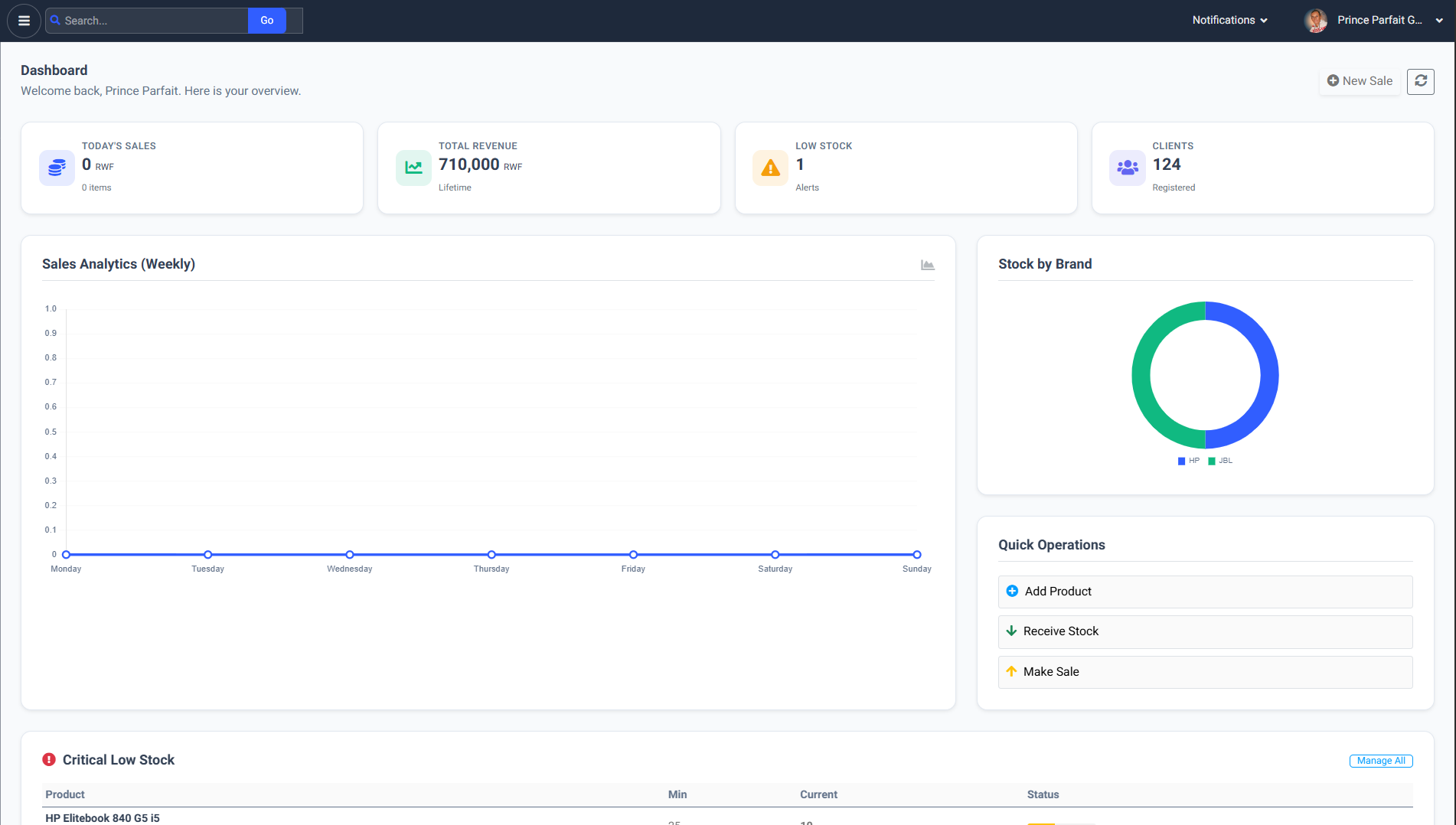
The Home dashboard (./index) provides a quick glance at today's sales, low stock alerts, and quick actions.

StockPro Main Dashboard Overview.
assets/images/dashboard_main.png
Home Dashboard Overview

Was this page helpful?

Authentication System

Security is the core of StockPro. Our authentication system uses a dual-layer approach to ensure that your business data remains protected at all times.

How it Works:

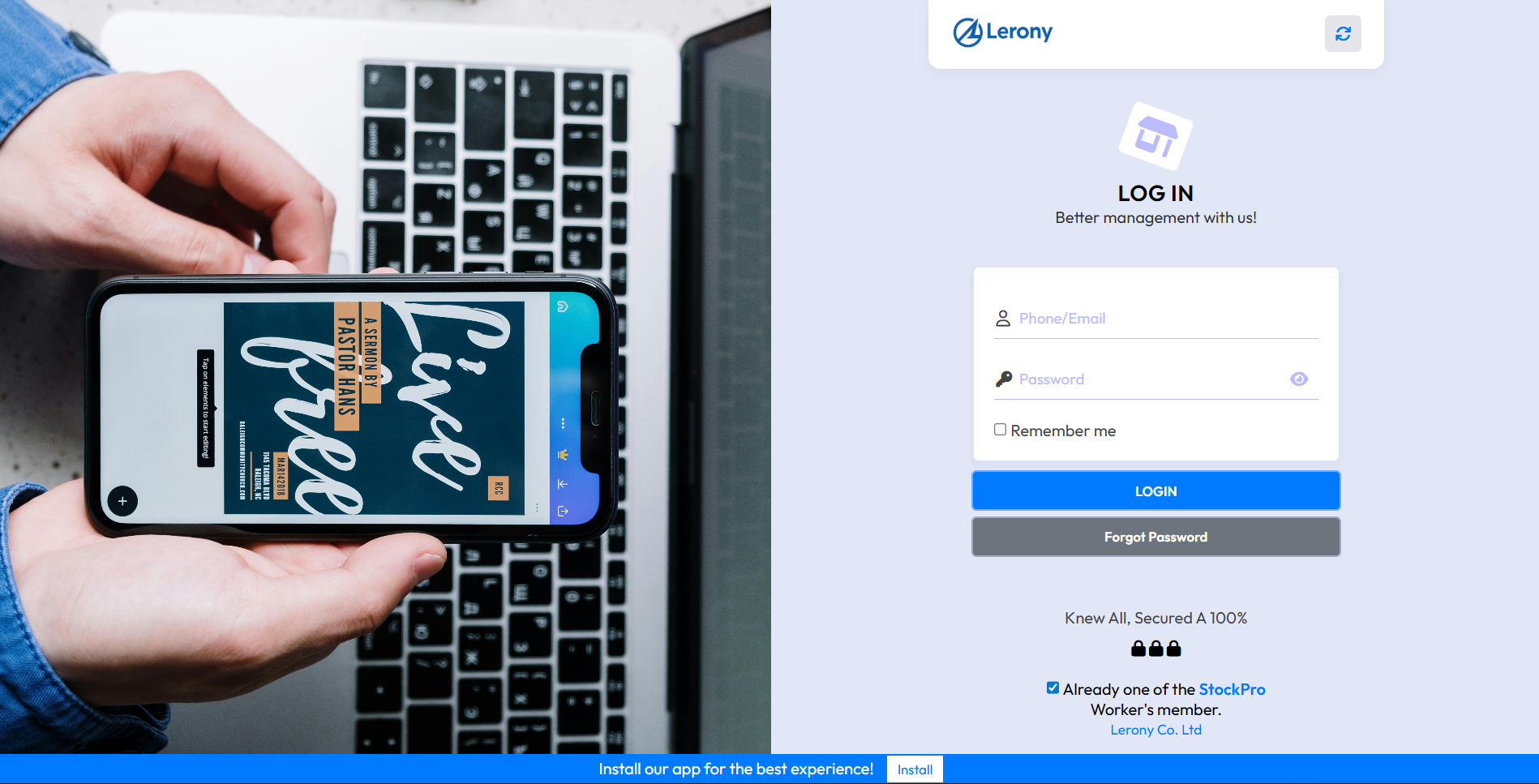
Step 1Primary Login: Users enter their registered Email or Phone.
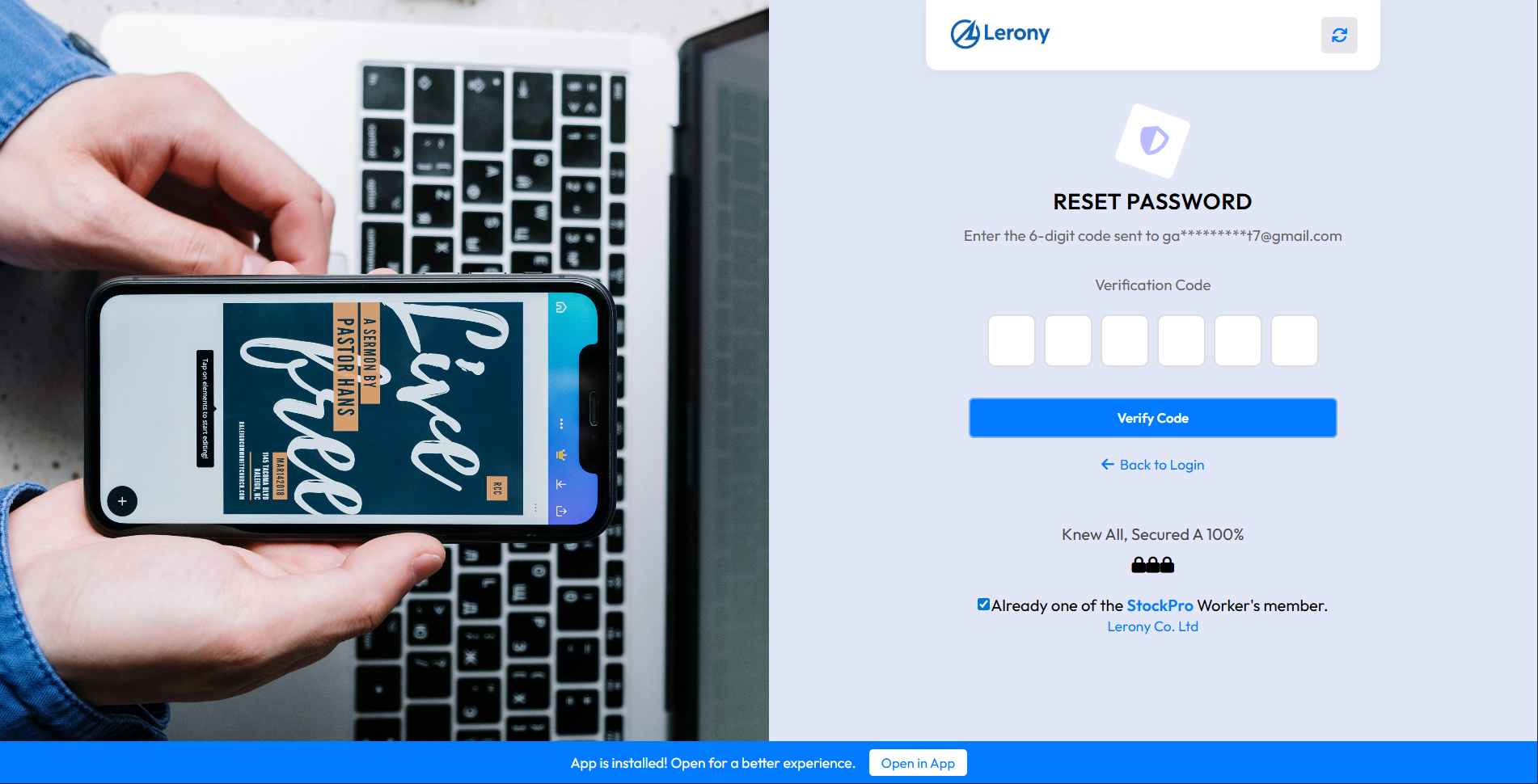
Step 2OTP: System generates a 6-digit One-Time Password sent to email.
Step 3Validation: The user enters the OTP within 10 minutes.
Step 4Authorization: The system logs the IP and Device ID, and redirects to dashboard.

Secure login portal for StockPro.

assets/images/auth_login.png
Authentication System

One-Time Password (OTP) verification screen.
assets/images/auth_otp.png
Authentication System

Was this page helpful?

From login to invoice (end-to-end)

This section ties together the main modules you see in the sidebar: authentication, master data, operations, billing, and reporting.

  1. Sign in — Users authenticate (email/phone and OTP where enabled). Roles and branch scope come from users and RBAC.
  2. Catalog — Define products, categories, and optionally serials before stock moves.
  3. Stock in — Receive goods (new_productin / view_productin) so costs and quantities are correct.
  4. Clients & suppliers — Maintain parties used on purchase and sales documents.
  5. Stock out / sales — Record sales lines; the system can create or link invoices and productout rows with payment status (Paid, Pending, Partially Paid).
  6. Invoices — Create regular, deposit, or proforma invoices (new_invoice), then print or share from gpp/g_invoice.php (A4, thermal, compact). Terms and signature come from System Settings.
  7. Client portal — Customers can search by phone/email/invoice; activity uses the same payment rules (proforma shows as Proforma, not Paid).
  8. Reports — Use reports_dashboard and generated reports for sales, stock, and clients; exports respect company branding from configuration.

Company onboarding checklist lists data to collect before go-live (logo, TIN, bank, branches, roles).

Was this page helpful?

Products Catalog

Defining New Products

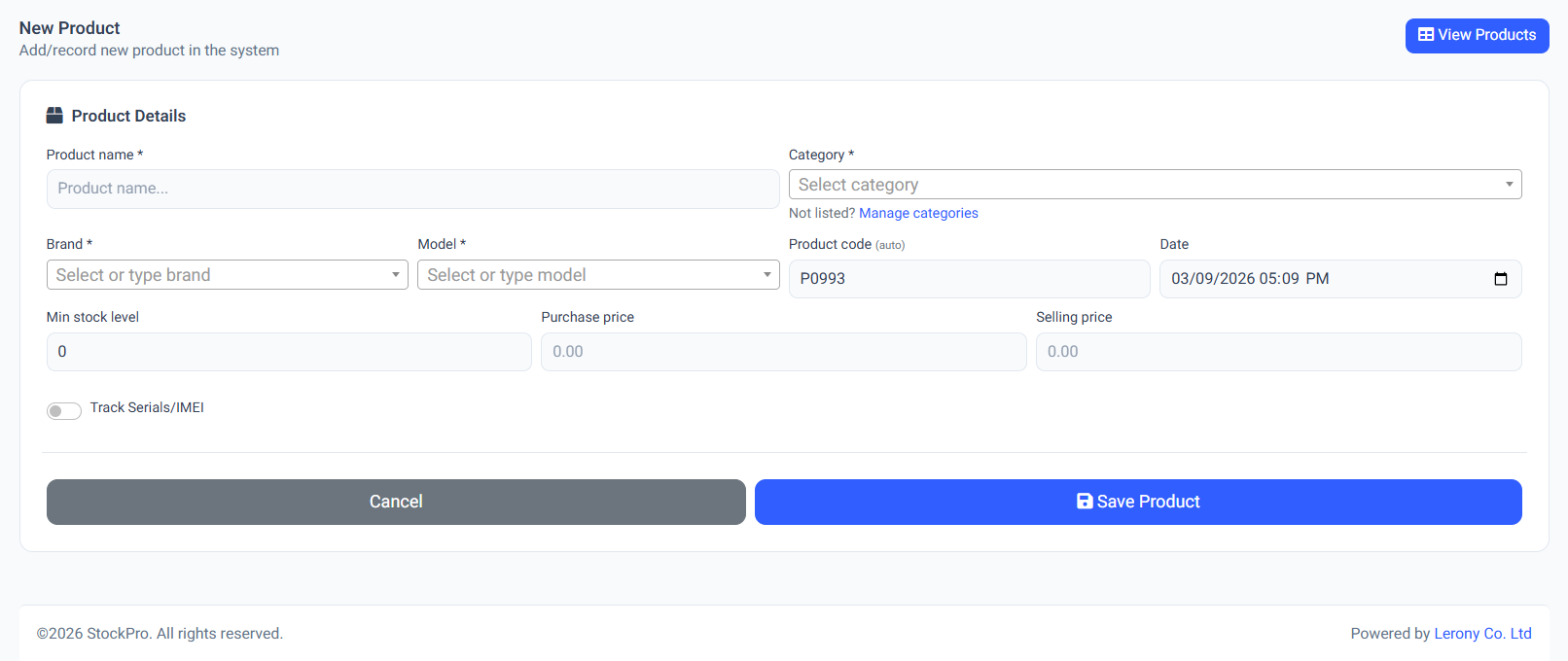
The New Product definition is the foundation of your inventory. Every item must be correctly categorized and identified before it can be received or sold.

Core Attributes

When adding a product, ensure the following fields are accurately captured:

  • System Category: Determines how the product is grouped in reports and analytics.
  • Brand Identity: Helps in filtering stock by manufacturer or brand name.
  • SKU Code: The Stock Keeping Unit is a unique alphanumeric identifier. If left blank, the system can auto-generate a barcode-compatible SKU.

Advanced Tracking Options

Serialization Control

For high-value items, individual units must be tracked separately. Toggle Serial Tracking to 'Enabled' to force the system to require a unique serial number for every single quantity of this product during Stock-In and Stock-Out operations.

Unit of Measure & Pricing

Define whether items are sold in pieces, cartons, or packs. You can set a default Retail Price here, though the actual cost is dynamically tracked based on your procurement history (Stock-In).

Product creation interface with advanced tracking toggles.
assets/images/product_new.png
Defining New Products

Was this page helpful?

Managing the Product Catalog

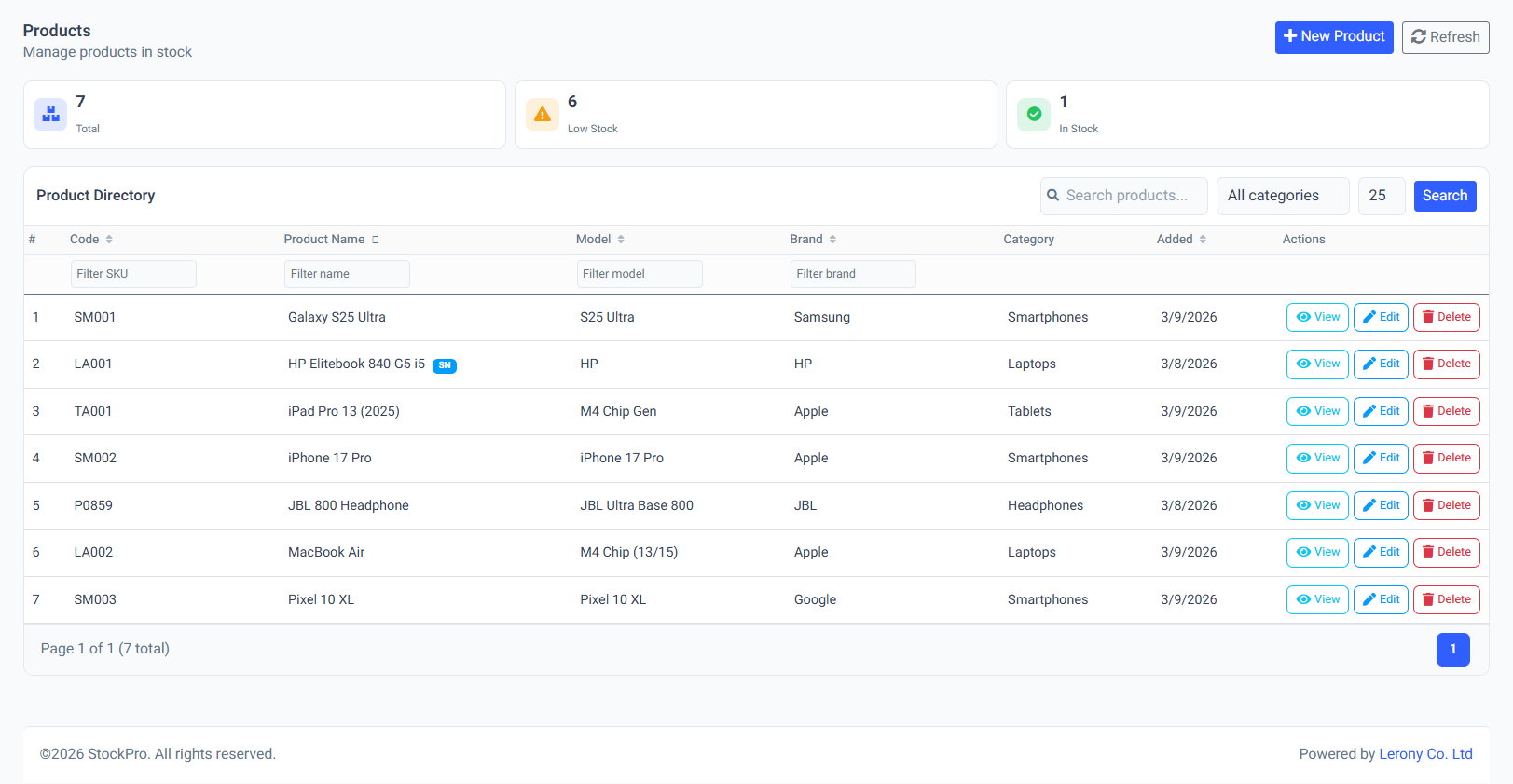
The Manage Products interface provides a command-and-control view of your entire business catalog. It goes beyond a simple list, offering powerful auditing and labeling tools.

Direct Actions

  • Barcode Printing: Select items and generate thermal-ready barcode labels instantly.
  • Quick Edit: Update descriptions, categories, or pricing without leaving the master list.
  • Deactivation: Instead of deleting items (which breaks financial history), 'mark as inactive' to hide them from sales menus.

Inventory Auditing

View real-time stock balances across all registered branches. The system highlights Low Stock items in orange and Out of Stock items in red to prompt immediate procurement.

Global product management dashboard with real-time stock levels.
assets/images/products_list.png
Managing the Product Catalog

Was this page helpful?

Processing Customer Returns

Handle product returns with professional speed while maintaining inventory integrity. The return process ensures that returned items are accounted for correctly.

Return Workflow

Step 1Identify: Locate the original sale or the specific item serialized number.
Step 2Inspect: Determine if the item is still in 'Sellable' condition or 'Damaged'.
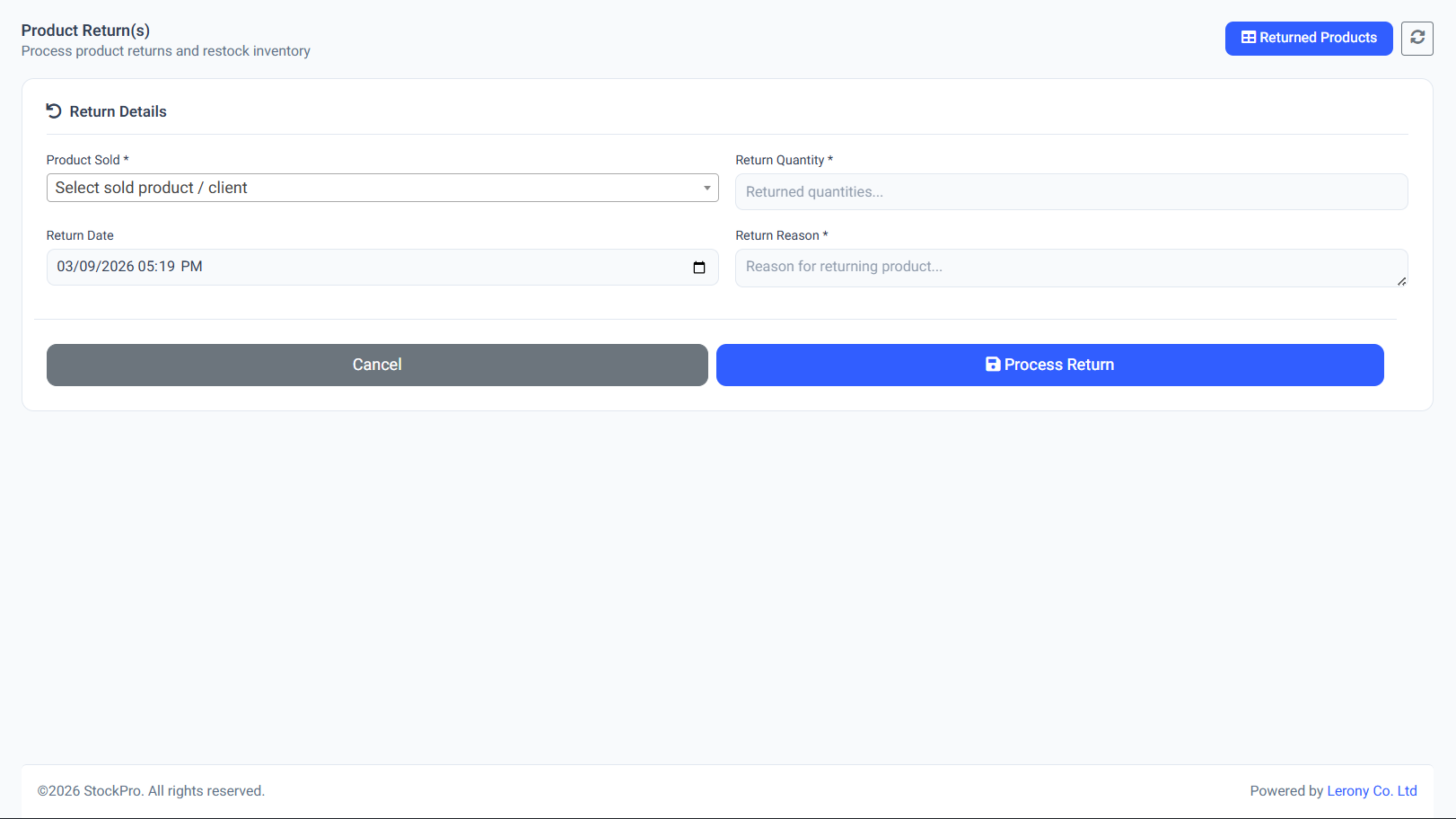
Step 3Record: Select the target product, input return quantity, and provide a clear 'Reason for Return'.
Step 4Impact: If sellable, the item is added back to active stock. If damaged, it is moved to the damaged ledger.
Financial Impact:

Processing a return does not automatically void the original invoice. You must handle cash refunds or store credits separately through the Finance module.

Processing a product return form.
assets/images/product_return.png
Processing Customer Returns

Was this page helpful?

Return History & Auditing

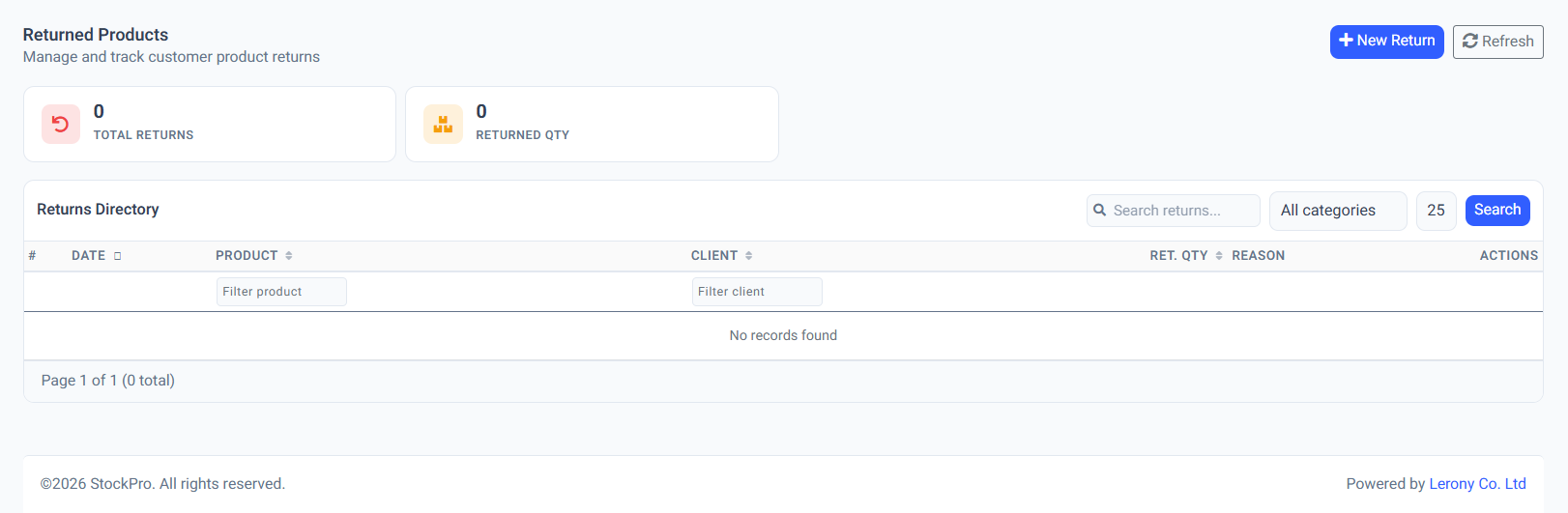
Audit the history of all processed returns to identify product quality issues or frequent return patterns from specific clients.

  • Timestamped Logs: See exactly who processed the return and when.
  • Condition Tracking: Filter by 'Sellable' vs 'Damaged' to audit inventory health.

Audit trail of all customer product returns.
assets/images/returns_list.png
Return History & Auditing

Was this page helpful?

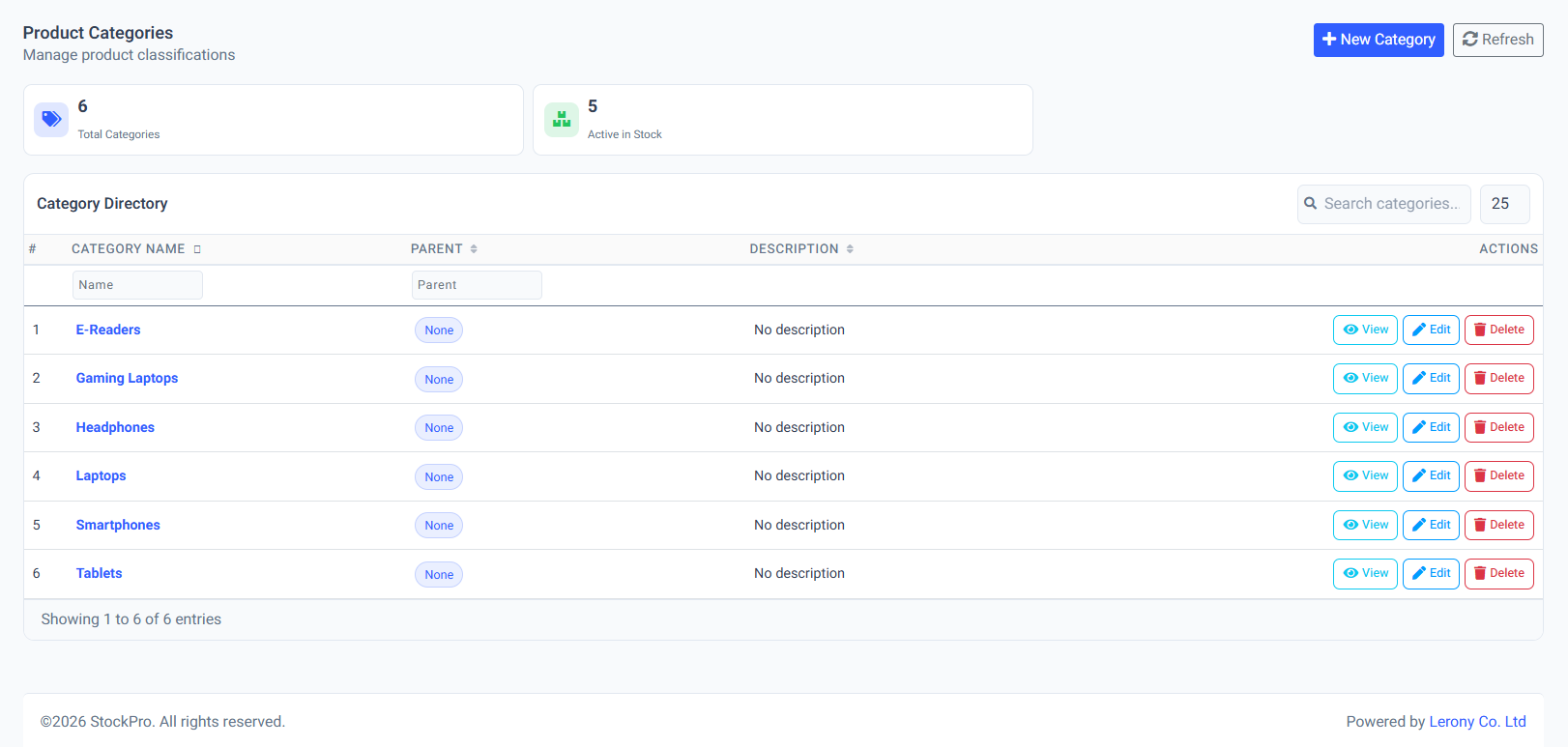
Category & Brand Hierarchy

Organization is key to managing thousands of SKUs. Use the Category Management section to build a logical system of parent and child groupings.

Why Categories Matter:

  • Sales Reports: See which category (e.g., 'Smartphones') is performing best.
  • Quick Search: Cashiers can filter the POS by category to find items faster.
  • Bulk Actions: Apply discounts or tax changes to entire categories at once.

Defining logical groups for items and brands.
assets/images/categories_list.png
Category & Brand Hierarchy

Was this page helpful?

Inventory Operations

Procurement & Stock Reception

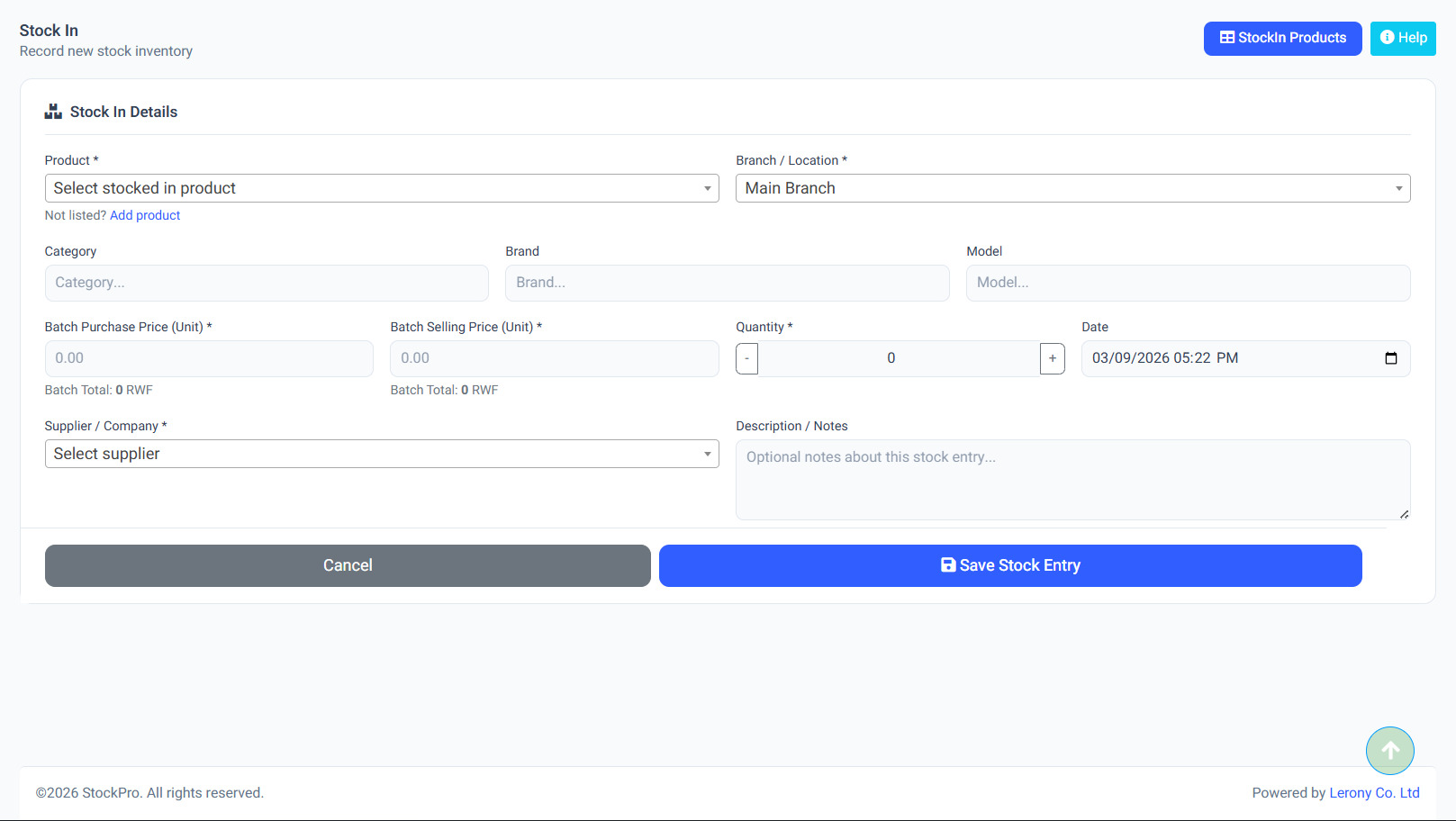
Bringing new inventory into your business must be a tracked, audited process. The Stock In module ensures that every item added to your shelves has a recorded source and cost.

Procurement Steps

Step 1Select Supplier: Pick the vendor from whom the stock was purchased.
Step 2Add Items: Use the search box or barcode scanner to add multiple products to the list.
Step 3Define Quantity & Cost: Input how many units arrived and what you paid per unit.
Step 4Serialized Entry: if the product uses serial tracking, you will be prompted to enter or scan each individual serial number now.
Step 5Verify & Submit: Confirm totals and commit to the database.

Dynamic Price Averaging

StockPro automatically tracks your Average Unit Cost. If you buy items at different prices over time, the system weight-averages them to give you accurate profit margins.

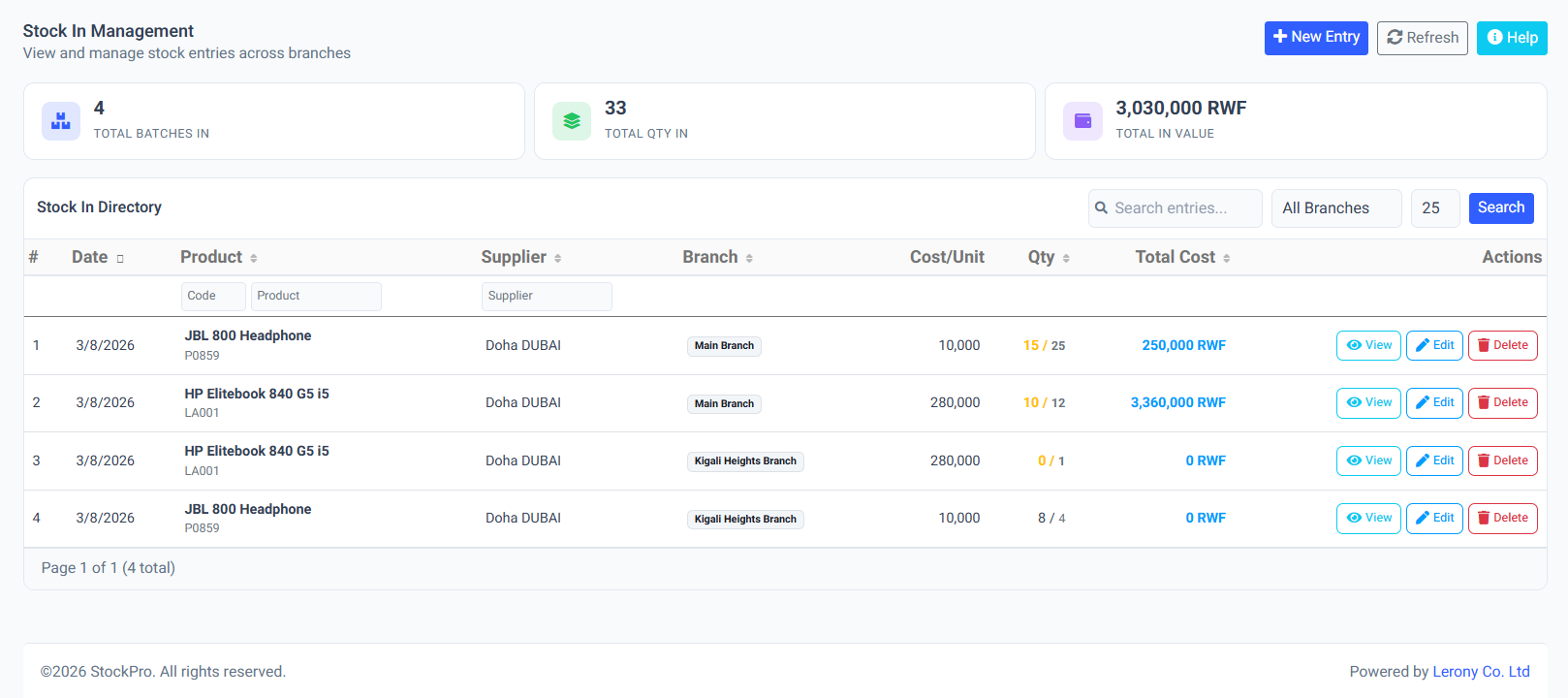
Multi-item stock reception and supplier mapping.
assets/images/stock_in.png
Procurement & Stock Reception

Was this page helpful?

Procurement Ledger (History)

The Stock In Ledger serves as your accounts payable audit trail. Every shipment ever received is logged here for long-term tracking.

  • Audit trail: Drill down into any past shipment to see which staff member received it.
  • Price Analysis: Review how your procurement costs from specific suppliers have fluctuated over months or years.

History of received stock.

assets/images/stock_in_list.png
Procurement Ledger (History)

Was this page helpful?

Inventory Disbursement (Stock Out)

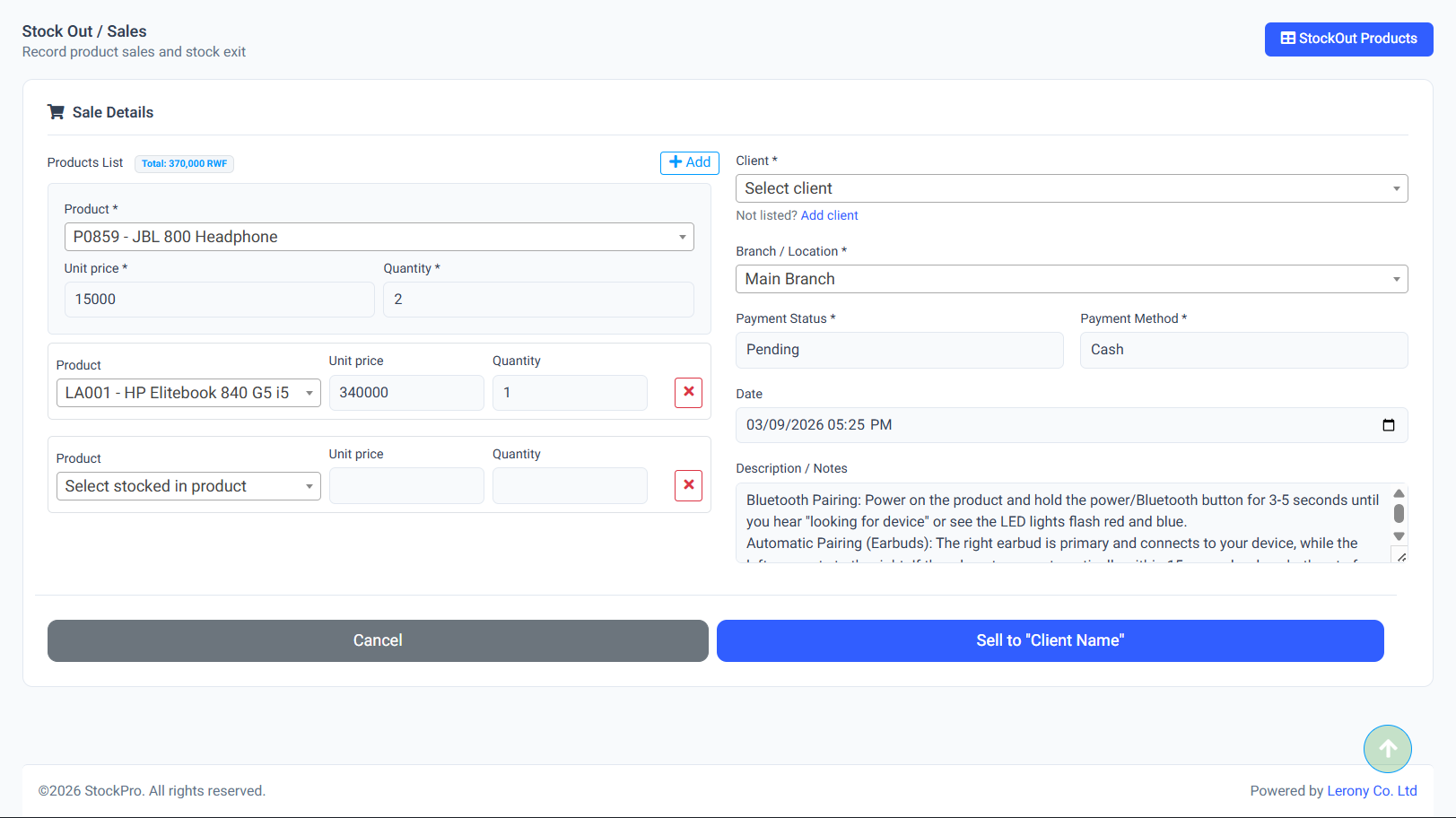
Not all stock leaves the building through a formal sale. Use the Stock Out module for manual adjustments, internal usage, or non-invoiced distributions.

Standard Usage

  • Internal Requisition: Moving items for store use or office supplies.
  • Managerial Disbursement: Authorized manual removals by authorized personnel.
  • Sample Giveaways: Tracking items removed for marketing or demonstration.
Warning:

Unlike Sales/Invoices, Stock Out records usually represents 100% loss in revenue. Use these records carefully for financial reconciliation.

Manual stock removal and internal distribution form.
assets/images/stock_out.png
Inventory Disbursement (Stock Out)

Was this page helpful?

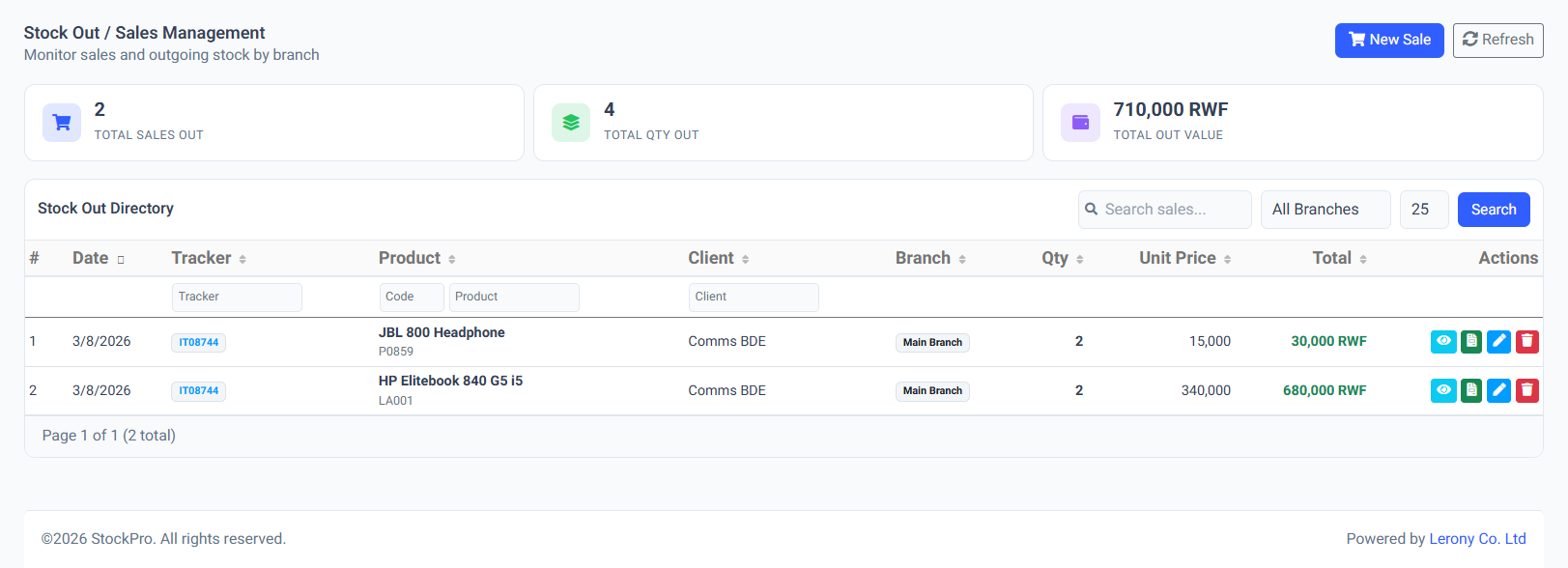
Disbursement Audit Logs

A detailed paper trail of every manual stock removal. Monitor which items are leaving the building outside of the sales channel to prevent internal leakage or unauthorized usage.

History of manual inventory disbursements.
assets/images/stock_out_list.png
Disbursement Audit Logs

Was this page helpful?

Inter-Branch Stock Transfers

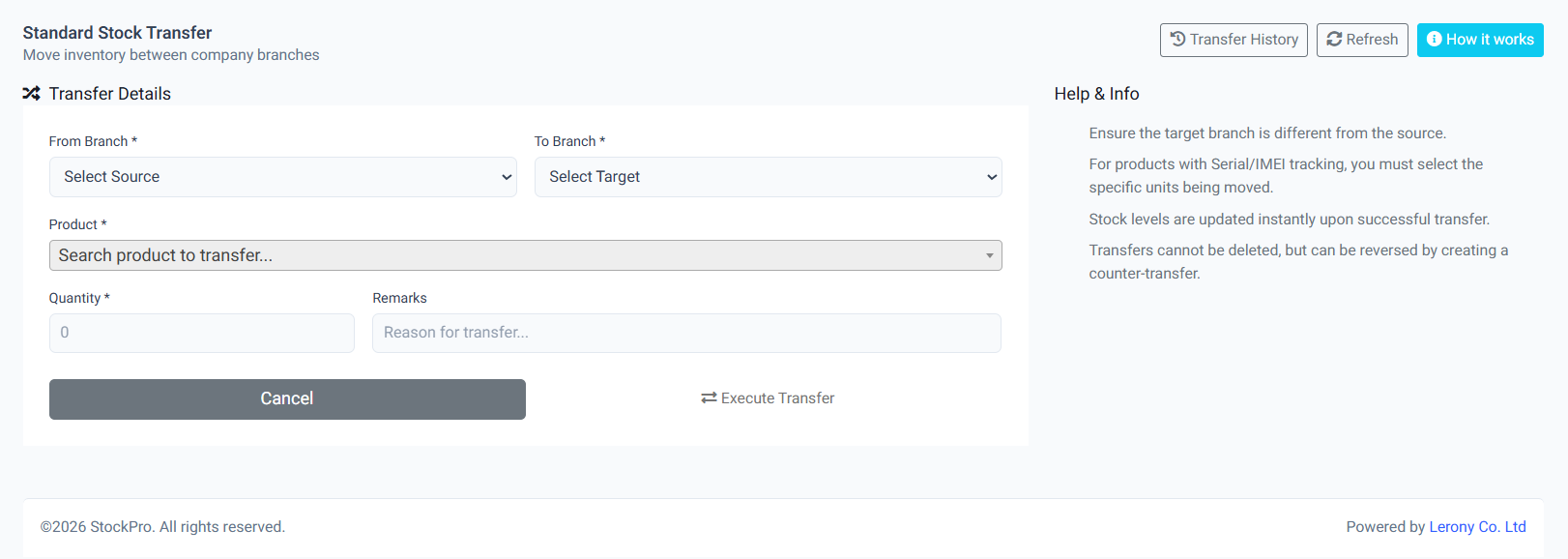
Moving stock between physical branches requires a secure, multi-step validation process to prevent inventory displacement or theft. StockPro uses a 'Chain of Custody' model for all transfers.

The Transfer Workflow

Step 1Initiation: The sending branch selects the items and the target destination branch.
Step 2Transit: Upon submission, items are deducted from the source's 'Active Stock' and marked as 'In-Transit'.
Step 3Arrival & Inspection: The receiving branch manager is notified of a pending transfer.
Step 4Review: The receiver inspects the physical goods against the digital transfer list.
Step 5Finalization: If okay, the receiver clicks 'Accept', which instantly adds the items to their local inventory.
Rejection Logic:

If items are damaged or missing during transit, the receiver can 'Reject' the transfer. This voids the movement and returns the items to the source for reconciliation.

Inter-branch stock transfer request and tracking.
assets/images/stock_transfer.png
Inter-Branch Stock Transfers

Was this page helpful?

Transfer Auditing & Logs

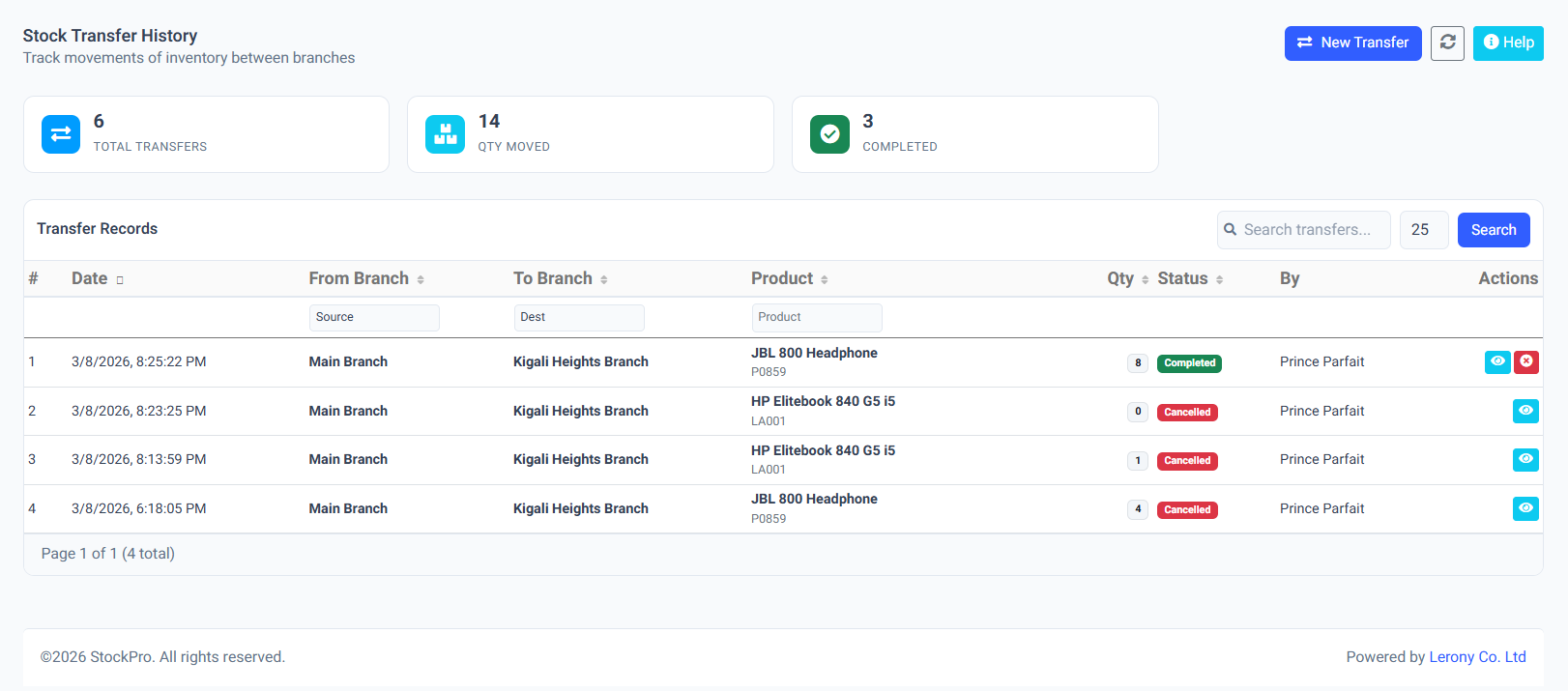
MonitorEvery movement of stock across your entire organization. Managers can see a birds-eye view of all In-Transit goods, ensuring that no inventory is lost between locations.

Complete organization-wide transfer tracking list.
assets/images/transfers_list.png
Transfer Auditing & Logs

Was this page helpful?

Stock Adjustments & Write-offs

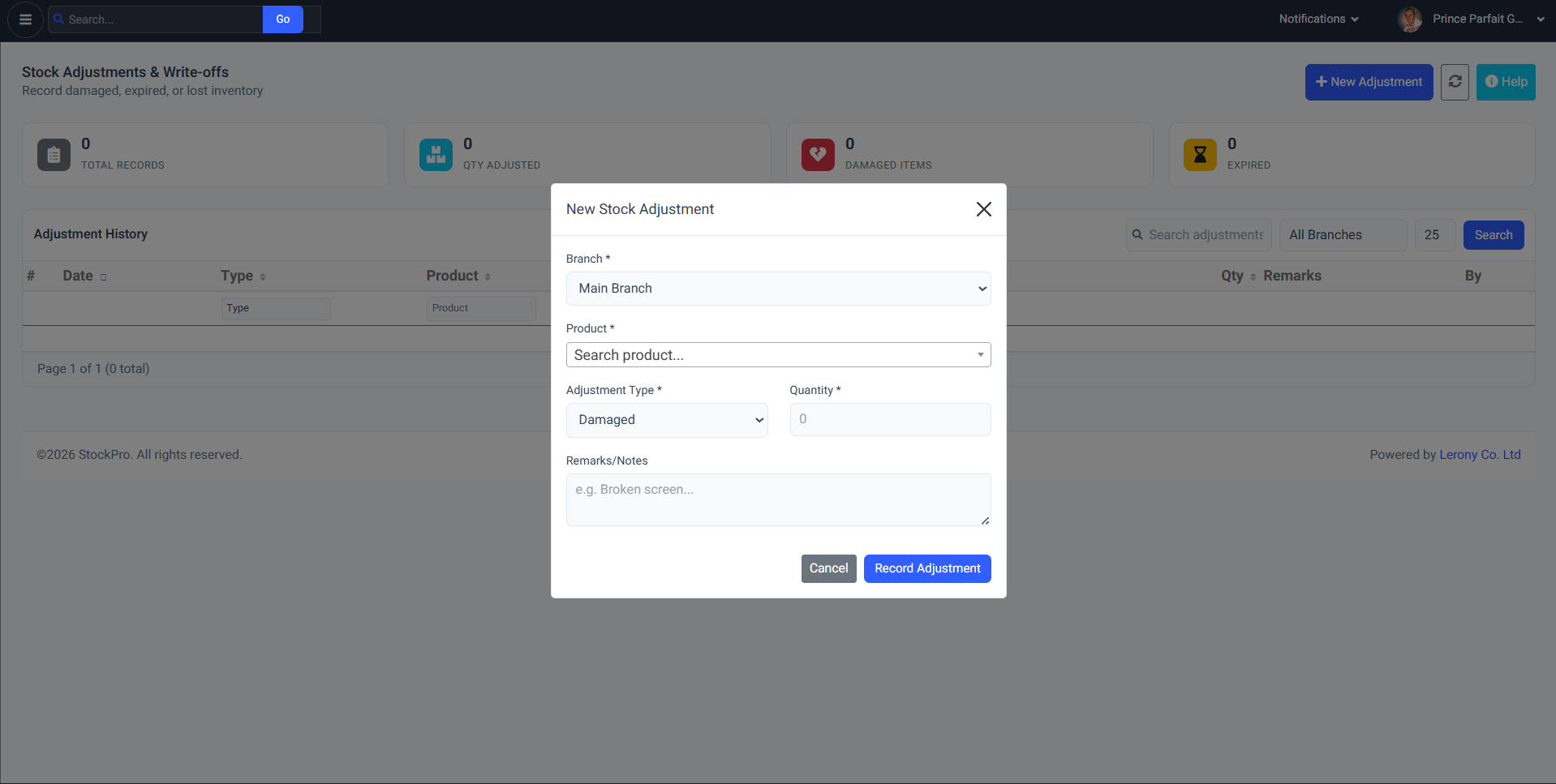
Inventory adjustments allow you to reconcile your digital records with physical reality without creating a sales transaction.

  • Damaged Goods: Record items that can no longer be sold.
  • Loss/Theft: Document missing items for administrative review.
  • Expiry: Remove expired goods from the active catalog.
Note:

Adjustments do not affect sales revenue but are reflected in the Cost of Goods Sold (COGS).

Inventory adjustment and reconciliation form.
assets/images/stock_adjust.png
Stock Adjustments & Write-offs

Was this page helpful?

Invoicing

Multi-Type Invoicing System

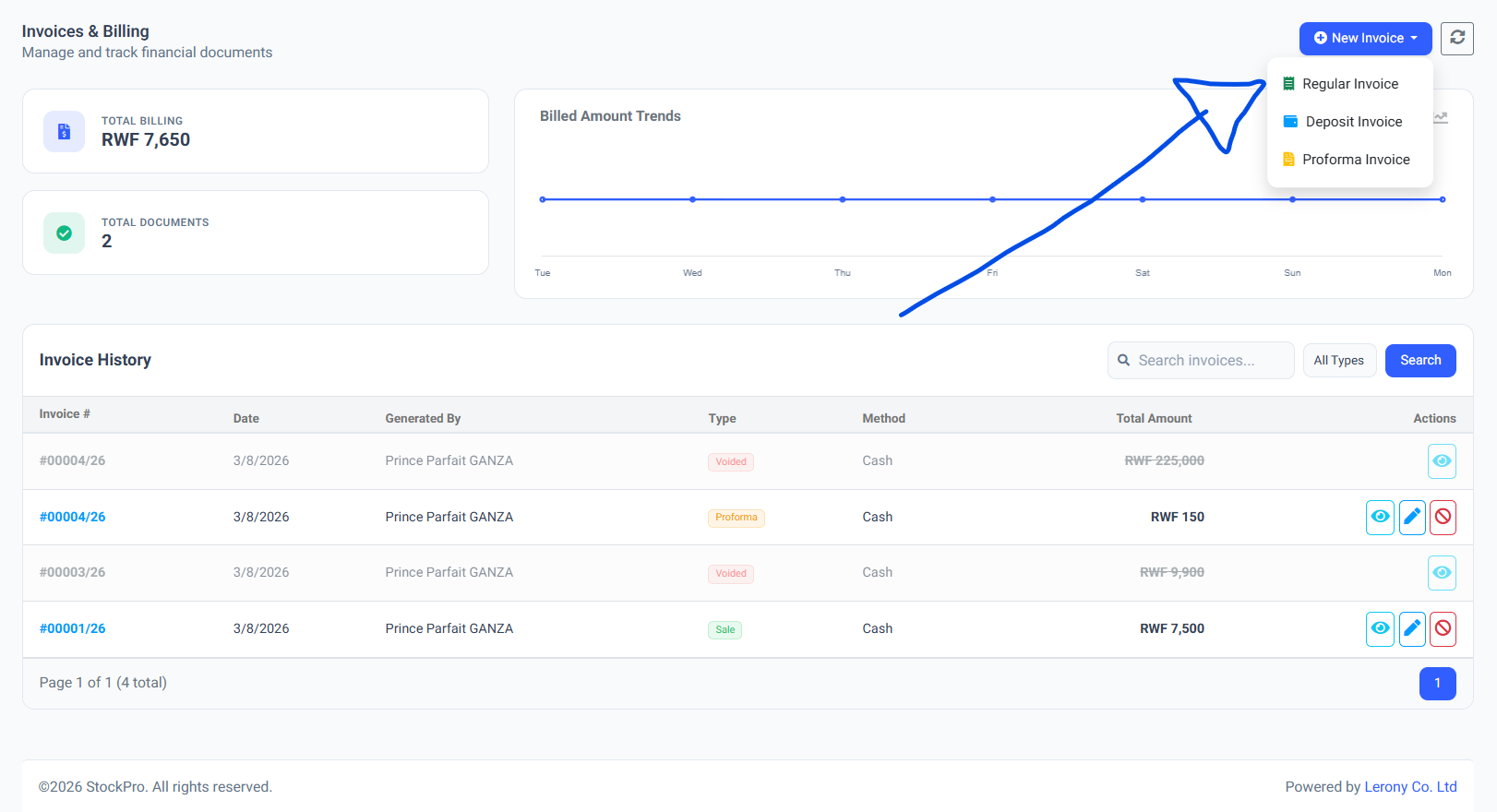
StockPro handles complex retail and wholesale scenarios through its flexible invoicing engine. Every transaction is tied to a specific type to ensure correct financial reporting.

Invoice Classifications

  • Regular Invoice: The most common type. Used for 'Over-the-Counter' sales where payment is received in full. It instantly deducts stock and records income.
  • Deposit / Credit Invoice: Ideal for partial payments or high-value sales to trusted partners. The system records the partial payment and generates an outstanding balance in the Client Ledger.
  • Proforma Invoice: Used for official quotations. It generates a professional PDF look-alike of an invoice but does not affect stock counts or revenue.

Serial Selection in Invoicing

When selling items that have 'Serial Tracking' enabled, the invoicing screen will force the user to select or scan the specific serial number being sold, ensuring 100% accurate warranty tracking.

Dynamic invoice generation with payment type selection.
assets/images/invoice_new.png
Multi-Type Invoicing System

Was this page helpful?

Sales History & Receipting

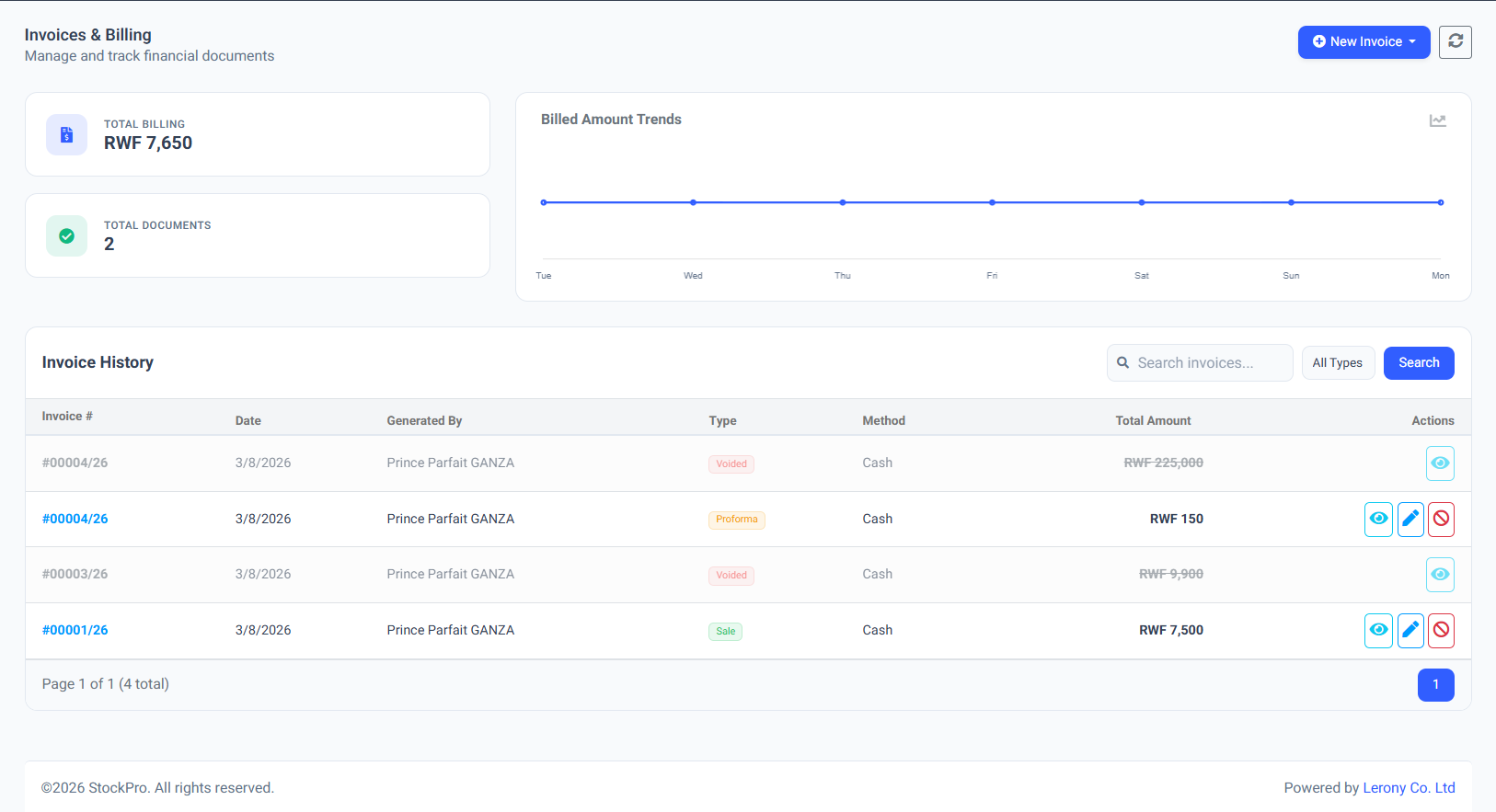
Manage and audit every financial transaction generated by your branch. The history ledger is your primary tool for end-of-day reconciliation.

Available Tools/Actions

  • A4 vs Thermal Printing: Generate large professional invoices or small-form receipts for thermal printers.
  • Transaction Voiding: If an error is made, administrators can void an invoice to return stock to the catalog and reverse financial entries.
  • Credit Tracking: Items sold on 'Deposit' show an outstanding balance, allowing for easy follow-up on payments.

Comprehensive sales audit trail and receipt management.
assets/images/invoice_history.png
Sales History & Receipting

Was this page helpful?

Product Categories

Organize your inventory with a hierarchical category system. Categories allow for better reporting, filtered stock counts, and streamlined product creation.

Key Features:
  • Bulk Assignment: Group products by type (e.g., Electronics, Consumables).
  • Filter Logic: Search for products within specific branches by category.
  • Inventory Reports: Generate value reports grouped by category.

Was this page helpful?

Supplier Management

Suppliers & Procurement

Maintain a centralized database of your procurement partners. Each supplier profile tracks essential contact data and supply history.

Step 1 Navigate to Suppliers > Manage to view the full directory.
Step 2 Click New Supplier to add a vendor, including their Phone, Email, and Address.
Step 3 Link suppliers during Stock In operations to track where items originated.

Was this page helpful?

Partners

Client & Debtor Onboarding

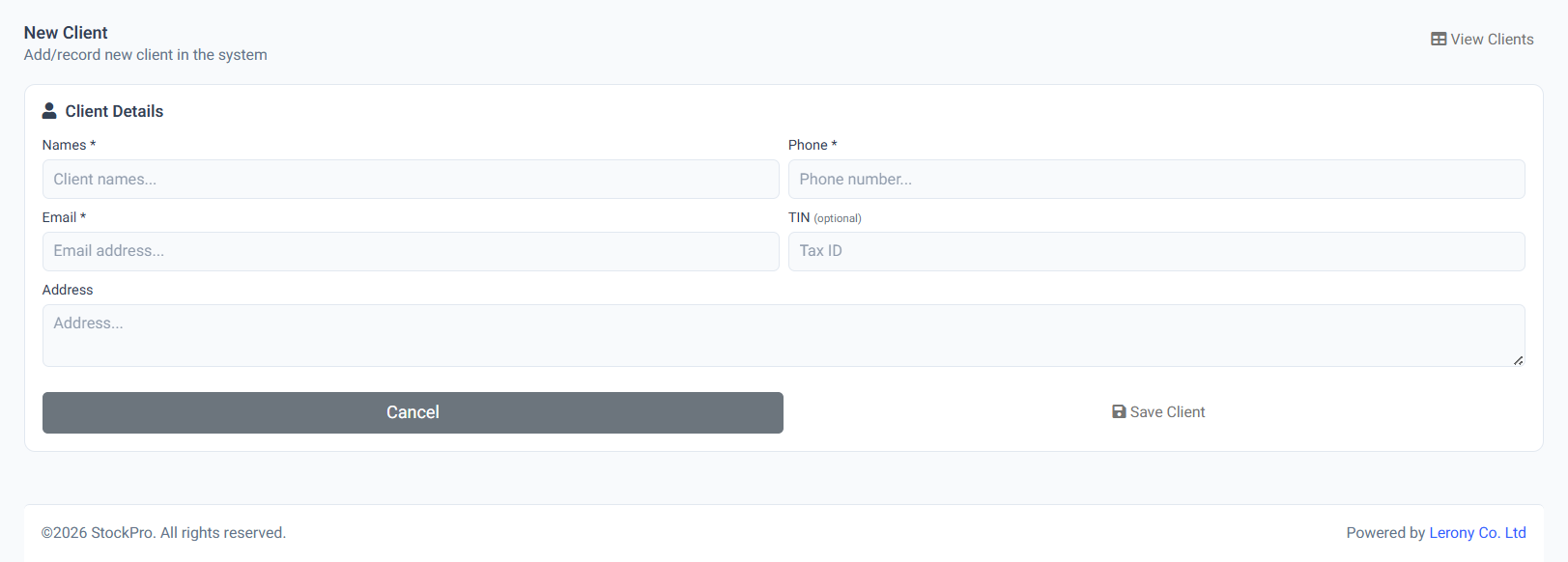
Build a loyal customer database. Registering clients allows for personalized invoicing and, more importantly, Credit Management.

Registering a new corporate or individual client.
assets/images/client_new.png
Client & Debtor Onboarding

Was this page helpful?

Client Credit & Purchase Ledger

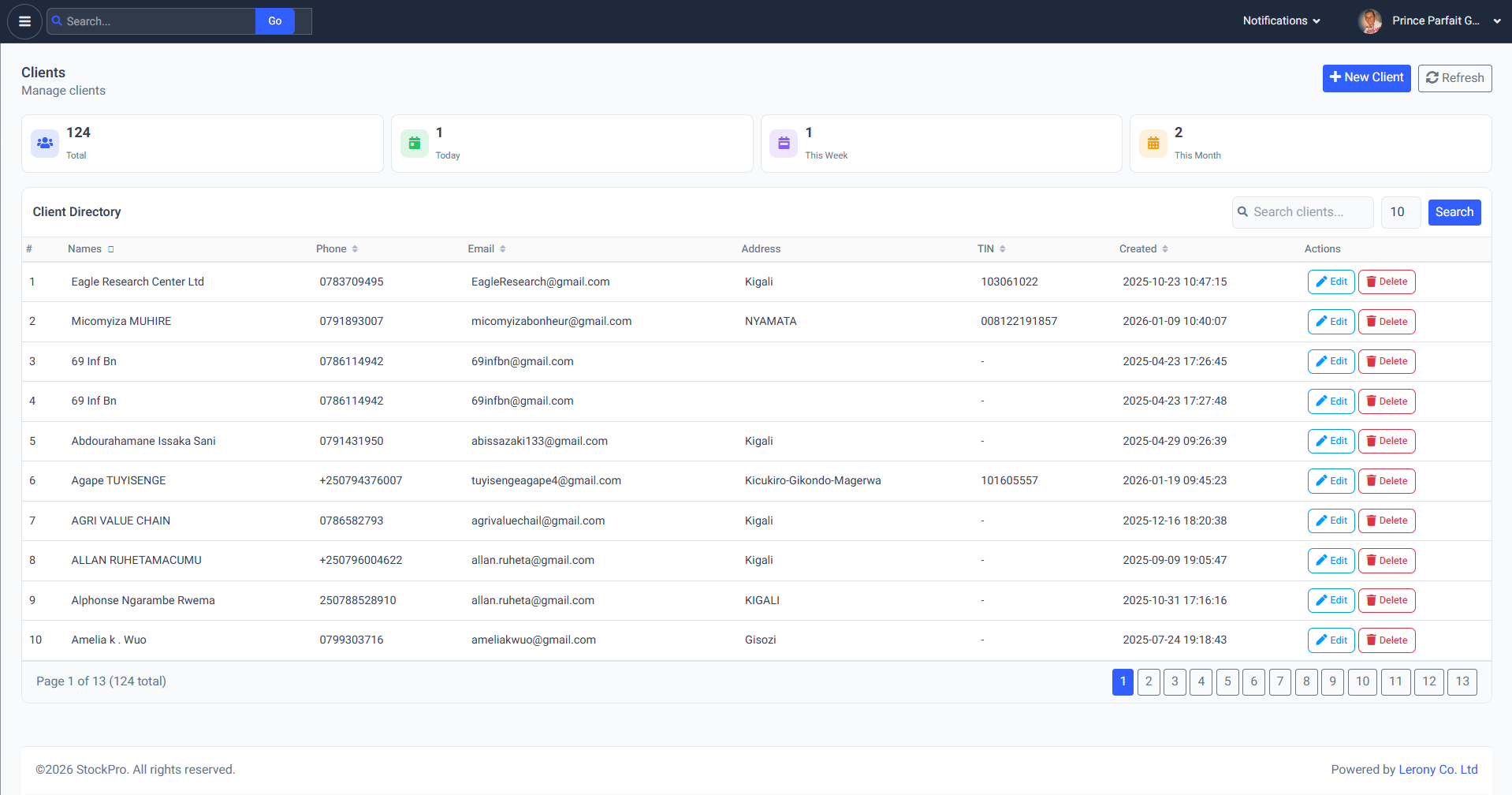
The Manage Clients section is your primary tool for managing Accounts Receivable.

  • Outstanding Balances: See exactly how much every client owes based on their deposit-type invoices.
  • Loyalty tracking: Review the total lifetime value (LTV) of your customers and their purchase frequency.

Master client directory with credit balance tracking.
assets/images/clients_list.png
Client Credit & Purchase Ledger

Was this page helpful?

Reports

Enterprise Reporting Engine

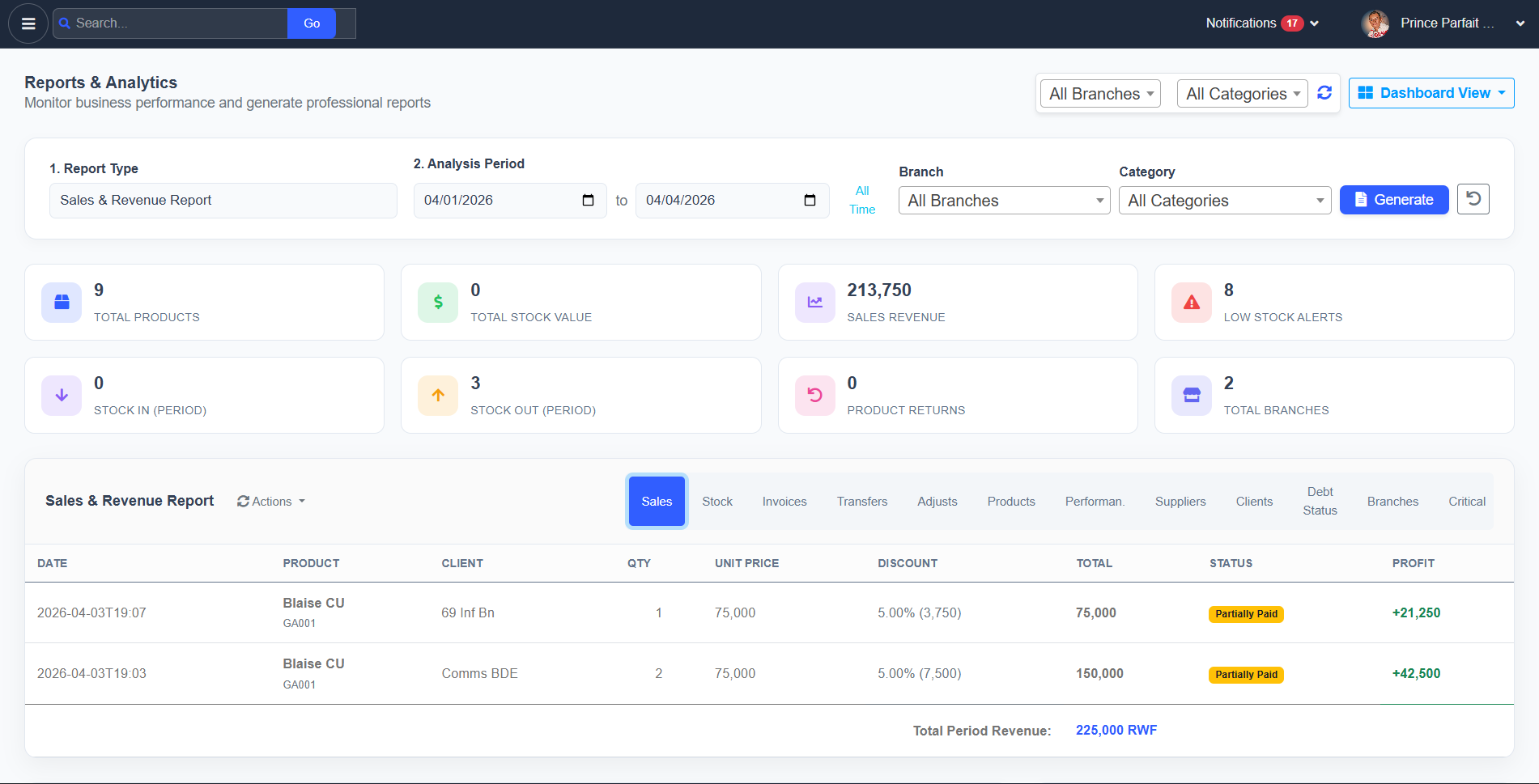
StockPro turns complex daily data into clean, visual insights for business owners and managers. Our reporting engine covers every pillar of the business.

Core Business Reports

  • Sales Analytics: Daily revenue, category performance, and staff sales ranking.
  • Inventory Health: Identifies which items are taking up space (Dead Stock) and which are running out (Low Stock).
  • Financial Audit: Compare your Total Stock Value against Total Revenue to understand gross margins.

Export Formats

All reports are available in high-fidelity PDF for formal board meetings or printing, and Excel (.xlsx) for advanced data manipulation and custom pivots.

Customizable system reporting and data export center.
assets/images/reports_main.png
Enterprise Reporting Engine

Was this page helpful?

Administration

Multi-Branch Organization

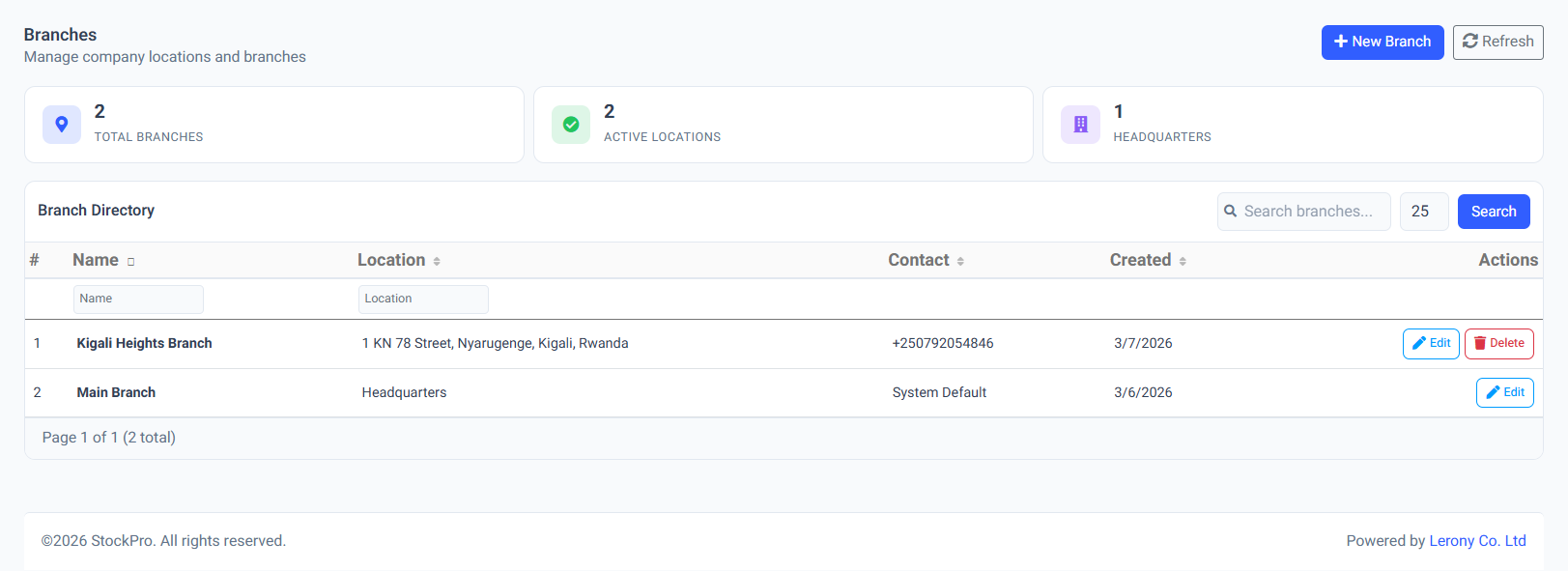
StockPro is designed for scale. Administrators can manage an unlimited number of physical business locations, each with its own localized inventory and staff roster.

Branch Authority

  • Independent Inventory: Stock levels in Branch A do not affect Branch B unless a formal Transfer is initiated.
  • Sales Isolation: Reports can be filtered by branch to compare performance across different regions.
  • Deactivation: Instantly lock a branch's access if it is closed for renovations or permanently decommissioned.

Managing physical business locations and branch status.
assets/images/branches_list.png
Multi-Branch Organization

Was this page helpful?

Inactive Branch Safeguards

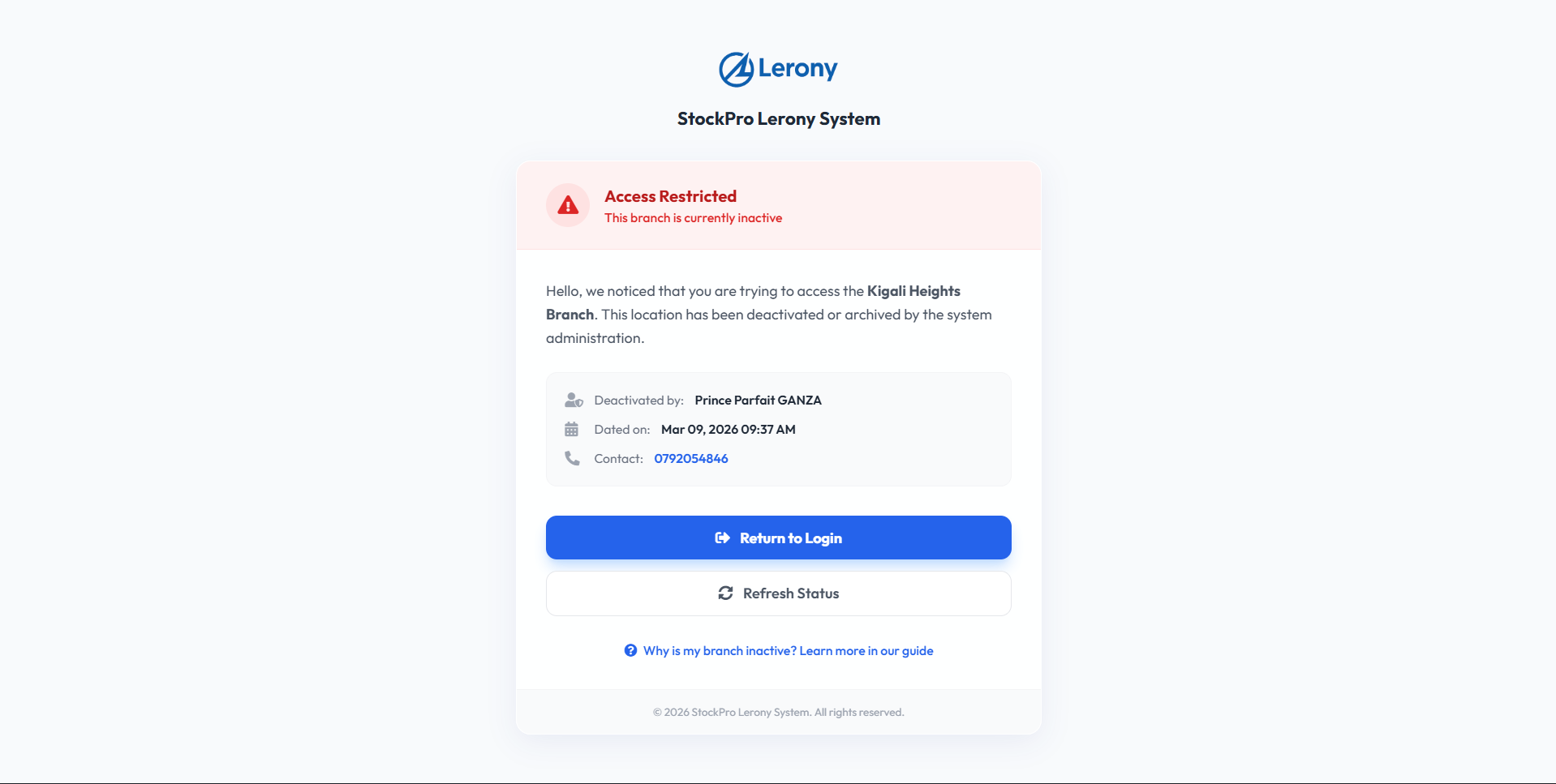
When a branch is marked as 'Inactive' in the database, a system-wide lock is triggered for all users assigned to that location.

Instant Lockout

Any attempt to access the dashboard or sales screens from an inactive branch will redirect the user to a secure 'Maintenance' page. This prevents unauthorized data entry or stock movements during downtime.

Access denied screen for decommissioned branches.
assets/images/error_branch.png
Inactive Branch Safeguards

Was this page helpful?

Staff Identity & Lifecycle

Manage your human resources and system access levels. Every user in StockPro is tied to a specific identity and set of credentials.

User Lifecycle Management

Step 1Registration: Create an account with a unique Phone/Email and temporary password.
Step 2Role Assignment: Select the staff member's seniority (e.g., Admin, Manager, Cashier).
Step 3Branch Mapping: Restrict the user's focus to a specific physical location.
Step 4Security: Enable OTP (Two-Factor Authentication) for sensitive roles.

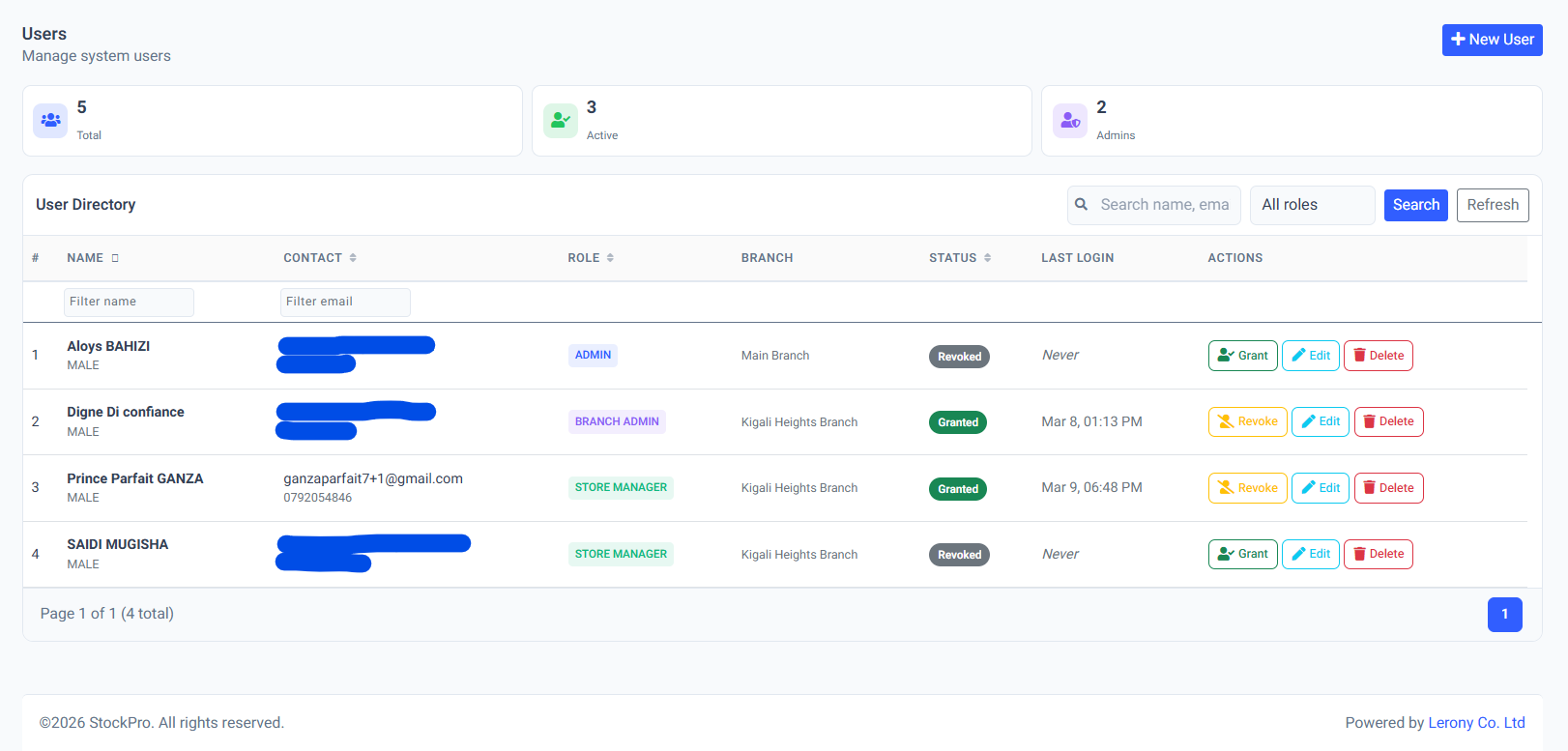
Staff and user management panel.

assets/images/users_list.png
Staff Identity & Lifecycle

Was this page helpful?

Granular Permissions (RBAC)

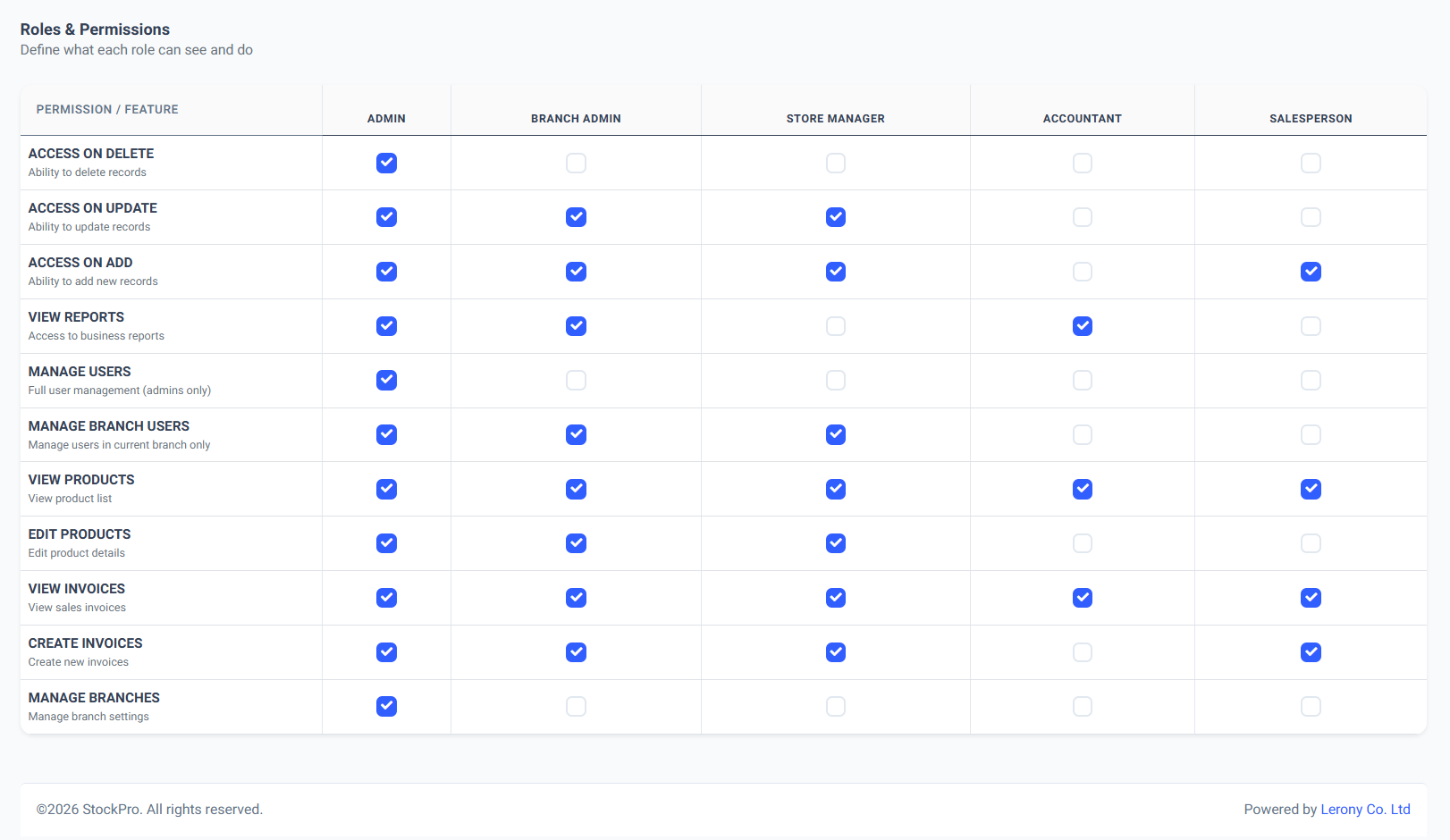
StockPro uses Role-Based Access Control to ensure that users only see the data relevant to their job duty.

  • Public vs Private: Control which pages are visible in the sidebar for each role.
  • Action Guarding: Prevent specific roles from deleting products, voiding invoices, or exporting sensitive reports.

Permissions matrix for role management.
assets/images/admin_rbac.png
Granular Permissions (RBAC)

Was this page helpful?

System-Wide Activity Audit

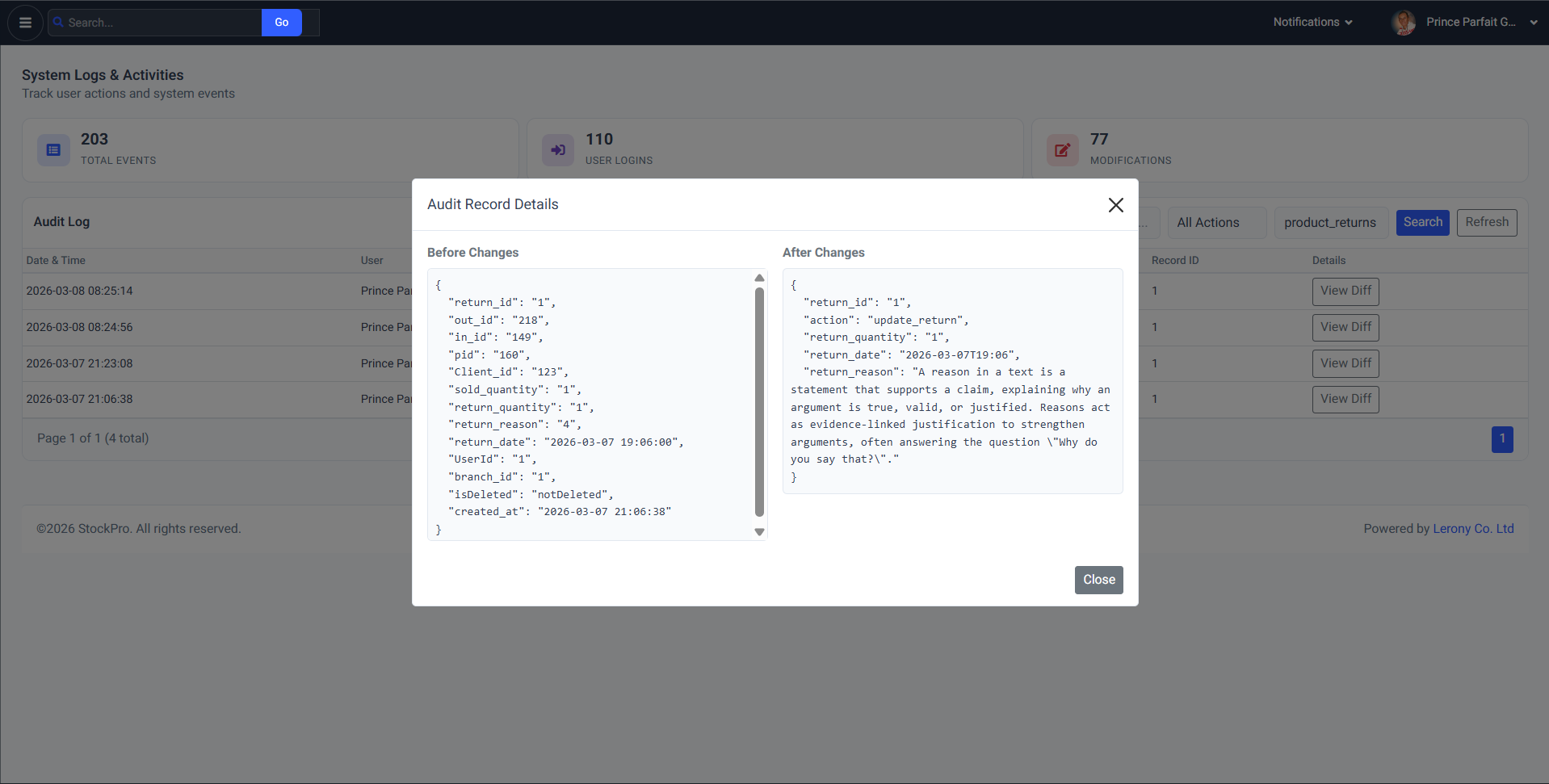
Maintain a 100% transparent audit trail. The Activity Logs record every significant action taken within the system, creating an immutable history of business operations.

Forensic Auditing

Every log includes the User ID, Branch ID, IP Address, and a description of the change, allowing managers to reconstruct events in case of discrepancies.

System-wide activity logs and audit trails.
assets/images/admin_logs.png
System-Wide Activity Audit

Was this page helpful?

User Account

Profile Settings

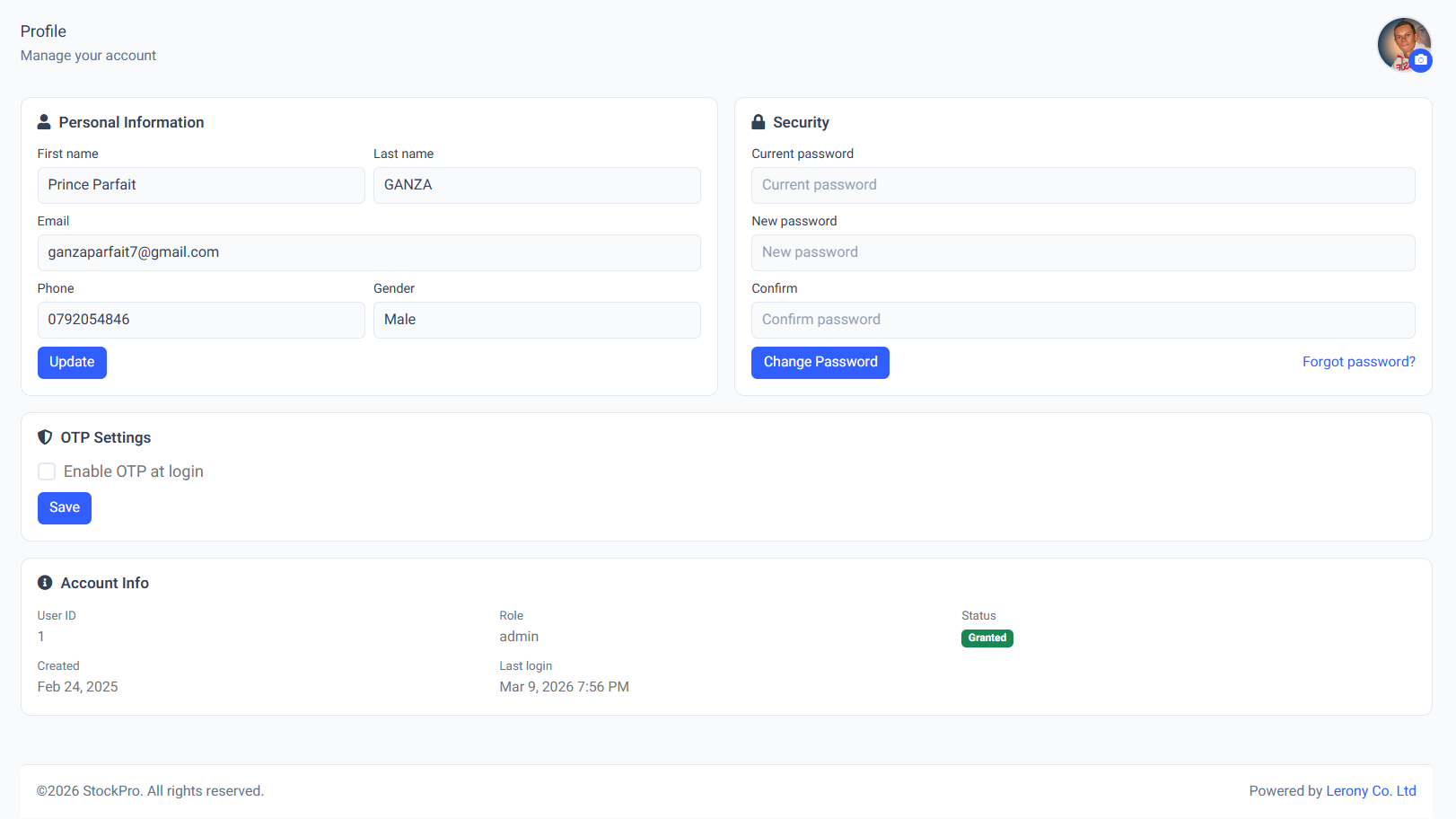
The Profile section allows you to manage your personal identity and security settings within StockPro.

Personal Information

Update your basic details to ensure communications and logs are accurate:

  • Name: Update your First and Last name.
  • Contact: Maintain an active Email and Phone number.
  • Gender: Select your gender for profile personalization.

Security & Password

Protect your account by regularly updating your password. You will need to provide your Current Password before setting a New Password.

Two-Factor Authentication (OTP)

Highly Recommended

Enable OTP at login to add an extra layer of security. When enabled, a 6-digit code will be sent to your registered email every time you log in.

Account Metadata

View non-editable information about your account, including your User ID, assigned Role, Account Status, and Login History.

Comprehensive profile management panel.
assets/images/profile_settings.png
Profile Settings

Was this page helpful?

Visual Themes

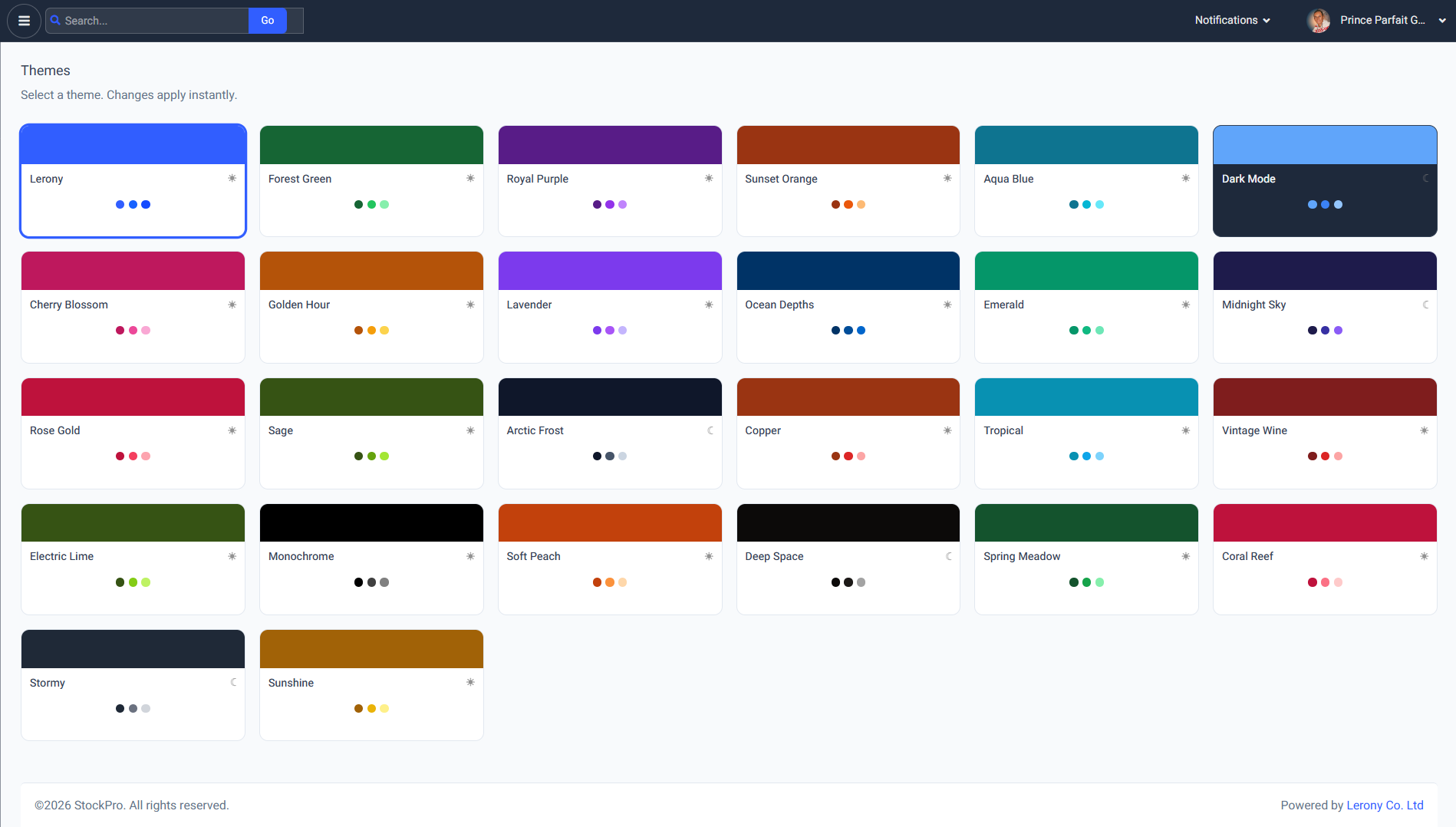
StockPro provides a premium visual experience with multiple theme options to reduce eye strain and match your work environment.

  • Light Mode: Clean, high-contrast white interface.
  • Dark Mode: Deep blue/grey interface for low-light conditions.
  • High Contrast: Enhanced visibility for accessibility.

Switching between light and dark themes.
assets/images/themes_settings.png
Visual Themes

Was this page helpful?

Notification Center

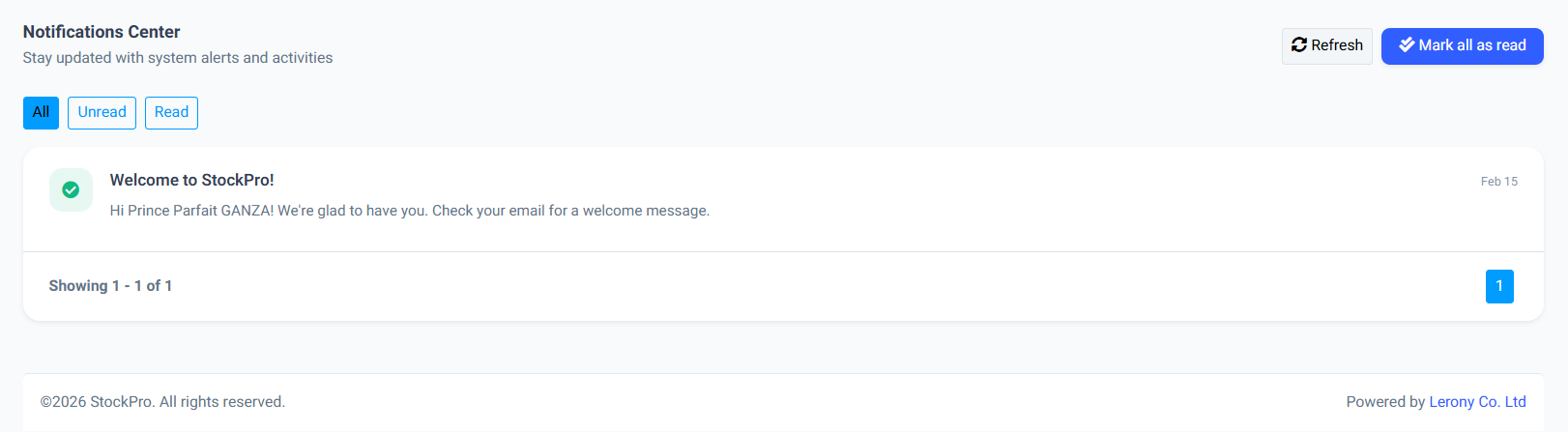
Stay updated with real-time system alerts. The Notification Center tracks:

  • Stock Alerts: Warnings when items fall below their minimum levels.
  • Transfers: Requests from other branches for stock movements.
  • System Updates: Important announcements from administrators.

System notification and alert history.
assets/images/notifications_panel.png
Notification Center

Was this page helpful?

Developer & Help Center

Access direct support from Lerony Co. Ltd. This documentation portal is your first point of contact for technical guidance and feature walkthroughs.

Direct Contact Channels

Bespoke Engineering

Our team specializes in high-performance digital ecosystems. If your company requires:

  • Custom Web Portals: Scalable enterprise applications.
  • Software Development: Desktop and specialized industrial software.
  • Social Media Management: Digital growth and brand consistency.
  • IT Consultancy: Strategic audits and infrastructure planning.

If you have another project in mind or need a custom quote, please open our Project Inquiry panel:

Was this page helpful?

Secure Logout

To protect your branch data, always use the Logout button in the settings menu when leaving your workstation.

Security Tip:

Logout clears your active session and prevents unauthorized access if your device is shared.

Was this page helpful?

Password Recovery

If you lose access to your account, StockPro provides a secure self-service recovery mechanism using your registered email address.

Recovery Workflow:
Step 1 On the Login page, click the Forgot Password link.
Step 2 Enter your Registered Email. The system will verify if the email exists in our records.
Step 3 Check your inbox for a 6-Digit Reset Code. This code expires after 1 hour for security.
Step 4 Enter the code on the OTP verification page.
Step 5 Create a New Password. It must be different from your last 3 passwords.

If you don't receive the email, please check your Spam folder or contact your System Administrator to manually reset your credentials.

Was this page helpful?

Report an Issue

Encountered a problem or found an error? Let us know and we'll fix it as soon as possible.

Drop your image here or click to select

Interested? Request Demo

Fill out the form below and we will get back to you shortly with a tailored demonstration.

Thank You!

Your inquiry has been sent successfully.
We will contact you shortly.

Lerony © 2024